
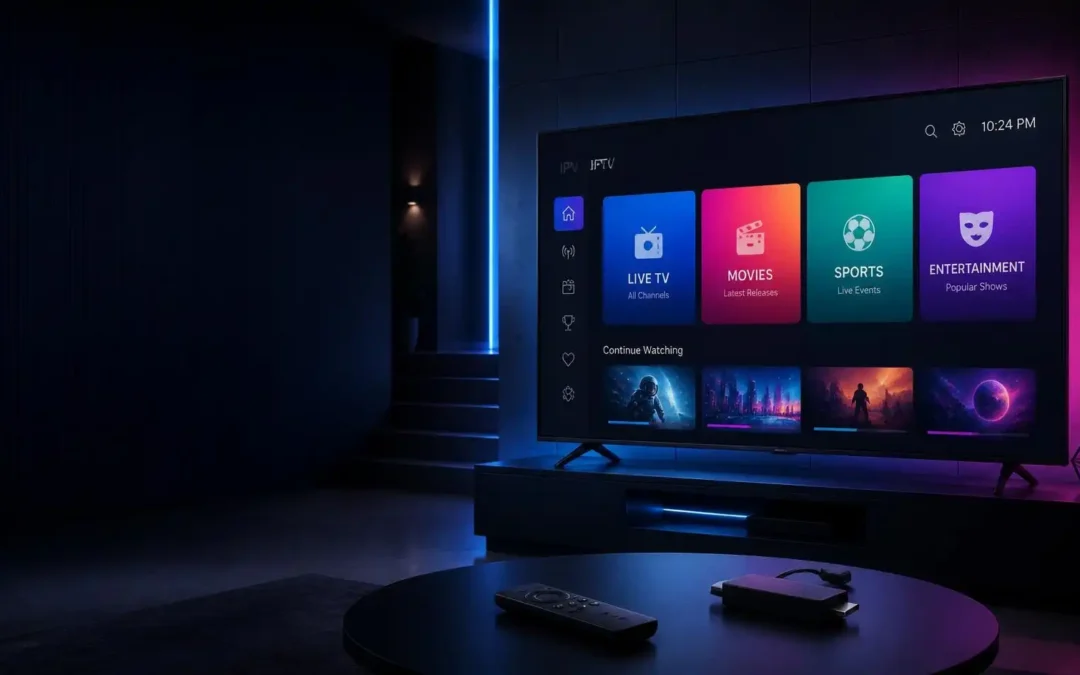
How to Install & Setup an IPTV Player on Firestick – A Practical Guide by Viking IPTV Find out the best IPTV apps for Amazon Fire TV Stick, how to install them step by step, how to connect your IPTV service, improve streaming quality, and fix common problems like buffering, login errors, and channels not loading. Learn helpful tips on how to choose the right player, protect your privacy and have a better IPTV streaming experience.
IPTV Player on Firestick: Install, Setup, and Troubleshoot
An IPTV player on Firestick allows you to watch compatible internet-based television streams on your television via an Amazon Fire TV Stick. But choosing the right app and getting it to work can be a bit confusing, especially if you are setting up IPTV for the first time.
You may be wondering which player to use or how to install it or where to enter your login details or what to do when the channels refuse to load. The good news is that once you understand how the different parts work together the setup process becomes much easier.
This guide covers how to install an IPTV player on Firestick, looks at popular player options, links a compatible IPTV service and troubleshoots common playback issues. It also has information on security, device compatibility and practical ways to improve your viewing experience.
So if you are a beginner or an existing IPTV user looking to switch apps, you will find clear instructions to get you started.
What is Firestick IPTV Player?
How IPTV players work
An IPTV player is an application that plays television streams that are transmitted through an internet connection. Instead of getting television through a traditional aerial or satellite dish, you access compatible streams through a network connection.
The player on a Fire TV Stick will provide an interface to browse channels, open streams, and depending on the player’s features, access program information or on-demand content.
Think of the player as a media app, not a TV subscription. It does help to display content, but it does not automatically give you the rights or access to watch every channel.
IPTV Player vs IPTV Service
Knowing this difference will save you from one of the most common mistakes in setup.
What Is An IPTV Player? An IPTV player is the software you install on your Firestick. The provider that gives the streams or account details that the player uses is an IPTV service.
Depending on the service and app you may get an M3U playlist URL, an Xtream Codes style login or some other supported connection method. Your player has to support the format your provider is going to give you.
Users of Viking IPTV should refer to the latest connection instructions for the service and use a compatible player. Installing an app doesn’t get you access to channels.
What you need to begin
What you need to do before installing IPTV player for Firestick:
An Amazon Fire TV Stick that is compatible with your selected application.
A reliable internet connection.
Set up an Amazon account on your device as you need.
An IPTV player downloaded from a trusted source.
If you plan on using a subscription service, you will need valid service credentials or a playlist from a legitimate provider.
Also, check your available storage and Fire OS version. Some apps may not be available on older devices or devices with limited software versions.
Having this information available makes the installation process easier and helps you figure out if an issue is with the app, device, network, or service.
Best IPTV Apps for Amazon Fire TV Stick How to Select
Compare the features that count
Which is the Best IPTV App ? The best IPTV app is determined by your viewing habits, device compatibility and the connection method your provider supports. There is no one player that is perfect for all users.
Features to Look for When Comparing the Best IPTV Apps for Amazon Fire TV Stick:
Support for your provider’s playlist or login format
A remote control intuitive user interface.
Search live TV channels and sort by category.
Electronic Program Guide (EPG) support (if needed).
Subtitles and audio track controls.
Play smoothly with your particular Firestick model.
Transparent privacy information and a trustworthy update process.
Some apps have extra features like favorites, catch-up playback, parental controls or multiple playlists. These features are only useful if the app and your service support them.
Popular IPTV player options to consider
When setting up IPTV on Fire TV devices, usually people consider a few applications. Availability, pricing, compatibility and installation methods can vary, so please check details before downloading.
IPTV Smarters: This family of players has interfaces designed to organize compatible IPTV content. Check before installing – exact edition, official distribution source, compatibility with Fire TV and supported login methods.
Another one to consider is TiviMate , which has a TV-like channel interface on supported Android TV devices. Make sure the version you can access is compatible with your specific Fire TV setup and that the features you want are paid for.
VLC media player: VLC is a versatile media player that supports a wide range of media formats and network streams. It might be good enough for people who just need basic playback but it is not a full replacement for all the dedicated IPTV interfaces or services features.
These options have different objectives. Don’t assume an app supports every playlist format, electronic program guide or streaming feature.
How to select the right player for your needs
Start with compatibility, not brand recognition.
Verify that the player supports M3U URLs or local playlist files if your provider provides an M3U playlist. If your provider supplies a username, password and server address, verify that the player is able to use that authentication method.
Now think about how you use your television. A person may appreciate a well-organized program guide watching live channels every evening. There are users who may want a simpler interface, who open individual streams occasionally.
Check the installation route at the end. You may find it easier to maintain an app available directly through the Amazon Appstore than one that requires manual installation. And don’t assume an app is safe because a website recommends it.
How to Sideload IPTV Player on Firestick
Step 1: Locate it in the Amazon Appstore
The simplest way to install is through the official app store if your player of choice is there.
Here are the procedures to follow:
Power on your Fire TV Stick and wait for the home screen.
Access the search or find function. The exact wording may differ on the Fire TV interface.
Search for the precise name of the IPTV player
Choose the right application and check the publisher and compatibility details.
Choose Get, Download, or the equivalent install option that appears on your screen.
Wait for installation to complete.
Open the app and verify that it opens correctly.
Amazon has a guide to searching for and downloading apps through the Fire TV search. Download Amazon Fire TV app.
If your favorite player is not there, do not download the first APK you see. First verify that the app is compatible with your device and if there is an official alternative way to install it.
Step 2 – Know manual installation and its risks
Some IPTV players are not offered on the Amazon Appstore. Sideloading is the common term for manually installing an Android application package, or APK.
The exact process will depend on the device, the Fire OS version, the application, and the distribution method. Sideloading may be limited on some Fire TV devices or software versions, so what works on one model may not work on another.
If you want to do manual installation and your device supports it:
Download the setup file from the official verified website of the developer.
Validate the application identity, version and compatibility.
Follow the installation instructions documented by the developer.
4. When the device asks, allow the device to install unknown apps only for the trusted installer app that you need.
Install the app, then disable any unnecessary installation permissions.
Don’t install modified APKs, files from unknown download pages or apps that ask for irrelevant permissions.
Amazon’s Fire TV installation documentation explains the technical process for installing apps outside of Amazon’s store. This documentation is largely for developers, and does not mean that every consumer device supports every sideloading method.
Step 3: Open the player, do initial setup
After the installation, open the app from your Firestick app library.
Follow any setup instructions that appear on screen. Some players will ask you to choose a language, check permissions, or select how to import playlists.
If the player opens showing an empty list of channels, this does not necessarily mean the installation failed. “Most players require a playlist, service login or some other source to display content.
Wait to enter credentials until you have verified that you have installed the application you meant to install. Keep your login details to yourself and only use the connection details provided by your legitimate provider.
At this point, your goal is simple: get the app up and running, make sure it responds to your remote, and is ready to accept a supported source of content.
How to Install an IPTV App on Amazon Fire TV
Step 1. Find out how your provider connects
Add a service only after reading the instructions provided by your provider. The connection process is not the same for all IPTV players.
Typical ways of connection are:
M3U playlist: A URL or file with references to available streams.
Xtream Codes style login: Usually needs a server address, username and password.
Local media or playlist file support: This is available in some players depending on the capability of the player.
One method a player can be for and the other against. If the app does not show the expected login screen, consult the official app documentation instead of guessing at settings.
Check the current setup instructions for Viking IPTV to verify the correct format and compatible application always when using Viking IPTV. Do not replace credentials or server details with those from a different service.
Step 2: Fill in the details carefully
Open the right connection or playlist section within your selected player.
To connect to an M3U, enter the playlist URL precisely as given. Enter the server address and your username and password, in the fields provided for a username and password connection.
Look for common typing mistakes:
Extra spaces leading or trailing a field.
Wrong capitalization where it counts.
Server address missing punctuation.
A half-copied URL.
Changed or expired credentials.
Some services need a separate electronic program guide URL. Add it only if your player and provider support that feature
Never share your password or private playlist URL on public forums. A playlist link may give access to your account or content, so treat it as sensitive information.
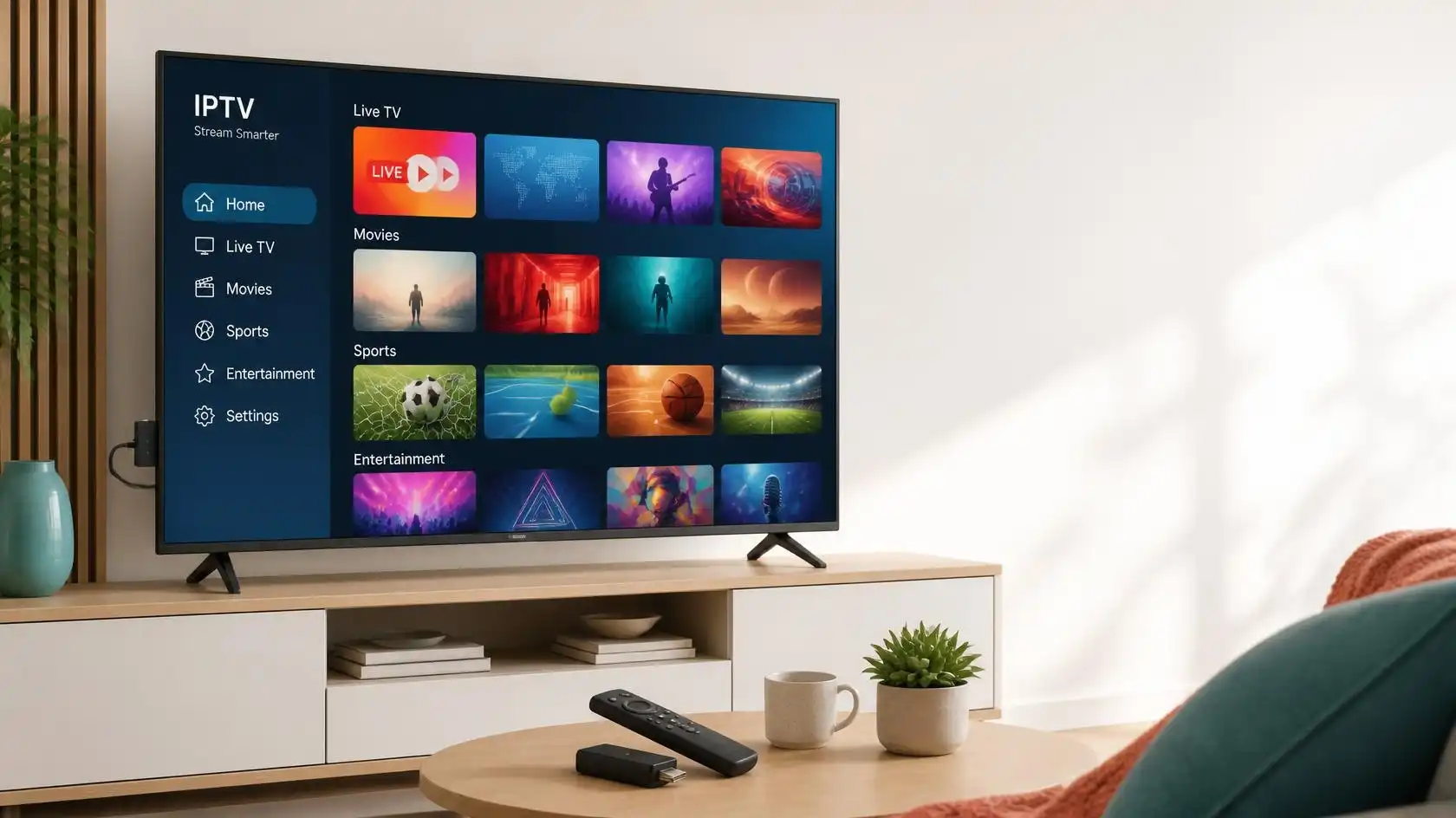
Step 3: Load Channels and Try Playback
Enter the correct information, save the connection, and let the player load its available content.
Depending on the service, you might see live television, video-on-demand categories, a program guide, or other sections. The specific design varies by app and provider.
Test one channel you have available before you spend time customizing the interface. Watch that the video begins, the audio is working and playback isn’t interrupted with multiple errors.
If the channel list is visible, but nothing is playing, please check the stream, credentials, network and provider status. Relaunching the app is hardly the first best step.
Once basic playback is working, you can organize favorites, change subtitles or configure the program guide if those features are available.
How to Enhance Firestick IPTV Streaming Quality
First check your internetconnection
Buffering isn’t always the fault of the IPTV player. This may be due to a weak wireless connection, network congestion, slow provider server or a stream that is temporarily unavailable.
First check the Firestick connection in Settings > Network. Use any network diagnostic tools you have to find out if you have any connection problems.
If you have an unstable connection try these:
Power cycle your router and let it reconnect completely.
Relocate the Firestick or router to reduce wireless interference.
Try testing the connection with another streaming app.
If you are testing, pause big downloads on other devices.
If you’re still having trouble with the Wi-Fi, try using a compatible Ethernet adapter.
A speed test can help, but download speed alone doesn’t measure all aspects of streaming quality . Stability, latency, congestion and bitrate of the stream are also important.
Check Amazon’s site for help specific to your device, and find Fire TV network troubleshooting tips.
Adjust playback settings as needed
In some IPTV players you can change the video decoder, buffer settings, playback engine or stream format.
In some cases, these settings can help, but troubleshooting is more difficult when you change several options at once.
Here’s a way to do it:
Take note of the current playback settings.
Change one setting that is relevant to the issue.
Play that channel again.
Look at the outcome.
If the performance is worse, go back to the original setting.
If a player provides hardware and software decoding options, test only the alternate if playback problems suggest a decoding problem. Not all devices and streams work the same.
Also, make sure that the resolution of the stream is no higher than your device, connection or display can handle reliably. A lower resolution stream may be more dependable on a congested network.
Keep the player and Fire OS updated
Old software can lead to compatibility problems, crashes or unexpected behavior. Check for any updates to the Fire TV system and to the IPTV player through its legitimate distribution channel.
Clear temporary app cache when necessary. If your device is running low on storage, delete apps you no longer use.
Avoid installing a lot of useless IPTV players thinking more apps will improve streaming. More apps won’t give you more internet bandwidth or an unavailable provider stream.
For everyday use, stick to the essentials: a player that works, a connection that works, updated software and active service information.
Most IPTV Player Problems on Firestick & How to Fix Them
IPTV player open or install won’t
If an IPTV player won’t install, make sure the app is compatible with your Firestick and the Fire OS version you are using.
Make sure your device has enough storage space available and that your Internet connection is working. If you’re using the Amazon Appstore, check for any download or account errors that show up.
If an application was installed and then crashed immediately:
Restart your Firestick.
Keep your system and apps updated.
Open application management settings.
Select the problematic app and clear its cache.
If you are still having issues, consider reinstalling the app from a trusted source.
Menu names vary by device. Clearing app data is more powerful than clearing the cache, because it can also delete saved settings and login information.
Amazon’s guide to troubleshooting app crashes and loading issues details the recommended steps at the device level.
Channels still buffer or have a playback error
First, determine if the problem is with one channel or all channels.
If only one stream is down, it could be unavailable, misconfigured or have a server-side issue. Try a different channel and, if you can, a different device on the same service.
If every stream buffers, check internet connection, restart Firestick and close applications running in the background. Retest the same stream after each change.
If your other streaming services are working fine but your IPTV service isn’t, get in touch with the provider and ask if there is an issue with the stream or service in question.
Do not keep switching DNS settings , installing unofficial network tools or resetting your device to factory settings before trying out more complex solutions .
Incorrect login details or empty playlist
If you enter the wrong credentials, if your subscription expired, if the server address is mistyped, or if the player doesn’t support the connection format, you may get an authentication error.
Check the information your provider gives you. Make sure your account is active, your service supports account management if applicable, and you are not exceeding any device limits or connection restrictions.
If you log in successfully but no channels show, try refreshing or reloading the playlist using the player’s own controls.
Another problem could be a blank program guide. Channel stream can work even if EPG data is missing or mapped incorrectly.
If the issue continues , provide your provider with an error message , the player name , your Firestick model , and a description of the steps taken . No passwords should be sent over public channels.
Security, privacy and legal issues
Download apps only from trusted sources
The IPTV player may ask for permissions to access information or device features that are not strictly related to the basic playback. See what permissions it asks for and skip apps that want access that doesn’t make sense with no good reason why.
If available, choose Amazon Appstore or the developer’s verified official distribution channel. Be careful to check the publisher as other apps may have similar names and copied branding in an attempt to look legitimate.
Keep your Fire TV software up-to-date and delete apps you don’t use anymore. When you’re done, if you sideloaded an APK, remove any unnecessary install permissions.
A professional-looking website or a positive review doesn’t prove an app is safe by itself. Be wary of unusual payment requests, unsolicited downloads and requests for sensitive account information.
Keep your account and personal information secure
Where you can use unique passwords and don’t use credentials from your email, banking or other important accounts.
Do not share private playlist URLs, account credentials, or screenshots with login information. Where a URL is obtained from an active playlist or account details, it may be possible to access the service to which it relates, depending on the security controls in place.
Read the provider’s privacy policy to find out what account information it collects, how it uses the information and how to request support or account deletion.
If you believe your credentials have been exposed, change them through the provider’s official account process and contact its support team if needed.
Check content rights and local requirements
The technology of IPTV itself is not illegal. Legality depends on things like what you’re accessing, whether the provider has rights to distribute it, and the laws of your location.
Opt for services that are licensed to distribute the channels and programs they offer. Installing an IPTV player does not mean that a specific stream is licensed.
Beware of providers that offer access to premium copyrighted content without explaining what rights you have, the terms or who they are. Please review the Terms of Service and Laws of your jurisdiction prior to subscribing.
Please review the service documentation for Viking IPTV or any other provider to make your own informed decision about the content you access.
Frequently Asked Questions of IPTV Players on Firestick
1. What is the best IPTV player for Firestick?
There is no obvious winner. Compare supported playlist formats, ease of use, Fire TV support, program guide features, pricing and where to get the app. The right choice is the one that works reliably with your device and legitimate IPTV service.
2. Is IPTV free or paid subscription?
Yes, it’s possible to install and test a player without having to buy an IPTV subscription. However, an authorized content source is usually required to access the subscription-based channels. Some players can also open compatible free streams or local media.
3. How do I get an IPTV player on Firestick?
On the Fire TV interface browse for the app and then select the right listing and select to install. If it’s not available there, make sure it’s officially distributed and your device is compatible before attempting to install it manually.
4. So why am I not receiving channels on my IPTV app?
The player may not be set up with a playlist or service account. The playlist may have failed to load. The credentials may be invalid. Check the connection method, check the data with your provider, refresh the playlist.
5. Why Is My Firestick Constantly Buffering With IPTV?
This is usually caused by weak Wi-Fi, network congestion, a high stream bitrate, limitations of the device, or problems with the provider’s server. Try another channel . Check your network . Reboot the device . See if it’s just one stream or all streams .
6. Yes, you can use Viking IPTV with any IPTV player on your Firestick.
Not really. Compatibility depends on what connection methods your player supports and what setup requirements the service currently has. Read the instructions of Viking IPTV for installation or subscription to ensure the application supports the required playlist or login format.
Conclusion:
Your IPTV player on Firestick should be able to handle your service’s connection method, work with your device, and have the controls you need. Before you spend time customizing the interface, check out these basics. Download the app from a trusted source, input the correct service details and test a working stream. If something doesn’t work, look at the exact problem, don’t change multiple settings at once. Keep your device updated, your account credentials safe and only use services authorized to distribute their content. Always check up on the current setup information of Viking IPTV when you need to verify compatibility or connection details. With the right player, proper setup and a reliable internet connection, you can ease the management and troubleshooting of your Firestick IPTV setup.