
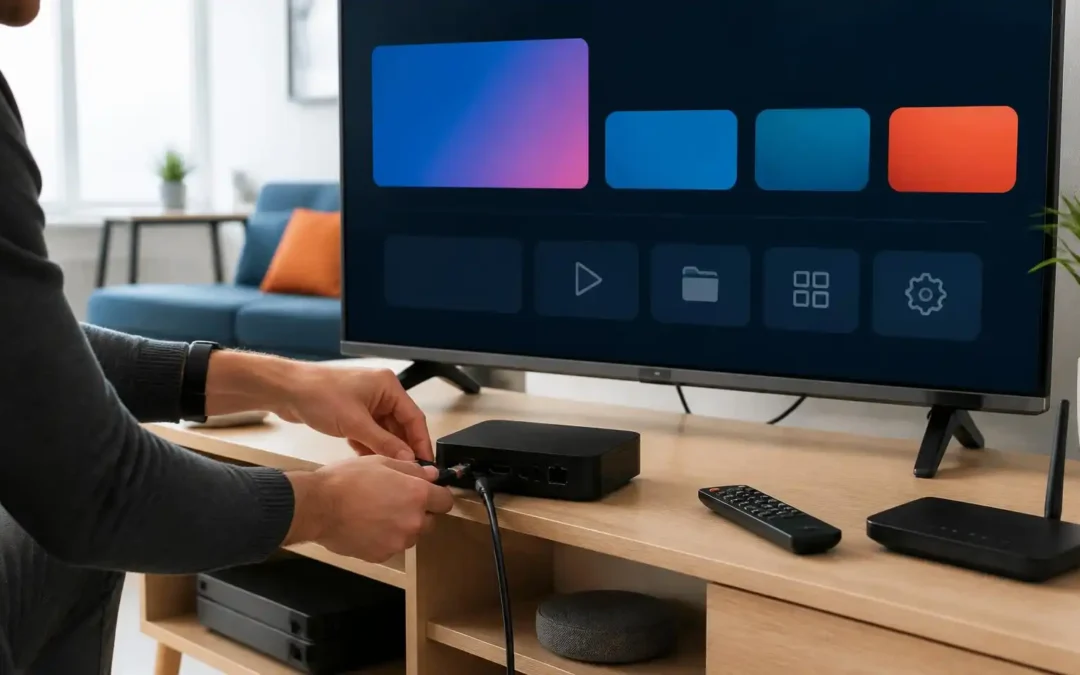
This IPTV setup basic guide explains how to install and configure IPTV on popular devices such as Smart TVs, Fire TV devices, Android, iPhone, iPad and Windows computers. It covers the basic requirements, how to choose the right IPTV player, how to enter your account information, loading playlists, testing playback and troubleshooting common issues like buffering, login errors and app crashes. Whether you are setting up IPTV for the first time or moving to a new device, these easy steps can help you create a more seamless and reliable viewing setup.
IPTV Setup Basics: A Complete Step-by-Step Guide
Setting up IPTV can seem complicated the first time you do it. You may have an IPTV subscription, a compatible device and an app installed, but still be unsure of where to put your login details or how to make the channels work.
The good news is that most IPTV setups are pretty much the same basic process. All you need is a decent internet connection, a compatible streaming device, an IPTV player or supported app, and your IPTV provider’s correct account details.
This is a basic guide to setting up IPTV, covering the process from beginning to end. This includes how to prepare, how to install the app, how to log in, device-specific instructions, common mistakes, connection problems and tips to improve your viewing experience.
The specific menus might vary by app and device. But the general setup process is similar whether you’re using a Fire TV device, Android device, Smart TV, phone, tablet, or computer.
What you need to get your IPTV up and running
Before you begin an IPTV installation, make sure you have everything you need. Doing this first will prevent unnecessary problems during the setup and make the process much easier to do.
A Compatible Device
1. Determine the device you will utilize. IPTV services can be streamed through compatible Smart TVs, streaming devices, Android devices, smartphones, tablets and computers.
Your device needs to be compatible with an IPTV player or the application recommended by your provider. Some come with app stores that let you download players directly but some may need to be set up differently.
If you are not sure, check your device model and operating system before installing anything. Using an app made for a different platform may result in login or playback issues.
Dependable Internet Access
Streaming quality is dependent on internet connectivity so your network is important to IPTV.
Connect your device to a good Wi-Fi network or if you can use Ethernet. Especially when a number of people are using the same network, a strong connection is useful.
Remember that internet speed is only one piece of the puzzle. Other factors that can impact playback include network congestion, Wi-Fi interference, router performance, and how far away your device is from your router.

Your IPTV Account Details
Usually you will need login information from your IPTV provider. Depending on the service and player this would be username and password, M3U playlist URL or Xtream Codes style details.
Keep these details somewhere safe. Do not publish them to the world or use them in an application you do not trust.
If you are using Viking IPTV, use the setup information that came with your account and follow the instructions for your device or player.
How to Configure IPTV on a Streaming Device
Streaming devices are popular because they can turn a compatible television into a connected entertainment screen. The basic process is to connect the device, install a suitable player and then enter your account details.
Connect and Configure the Appliance
Connect your streaming device to the TV, and turn to the correct HDMI input. Complete the device’s initial setup if you haven’t already.
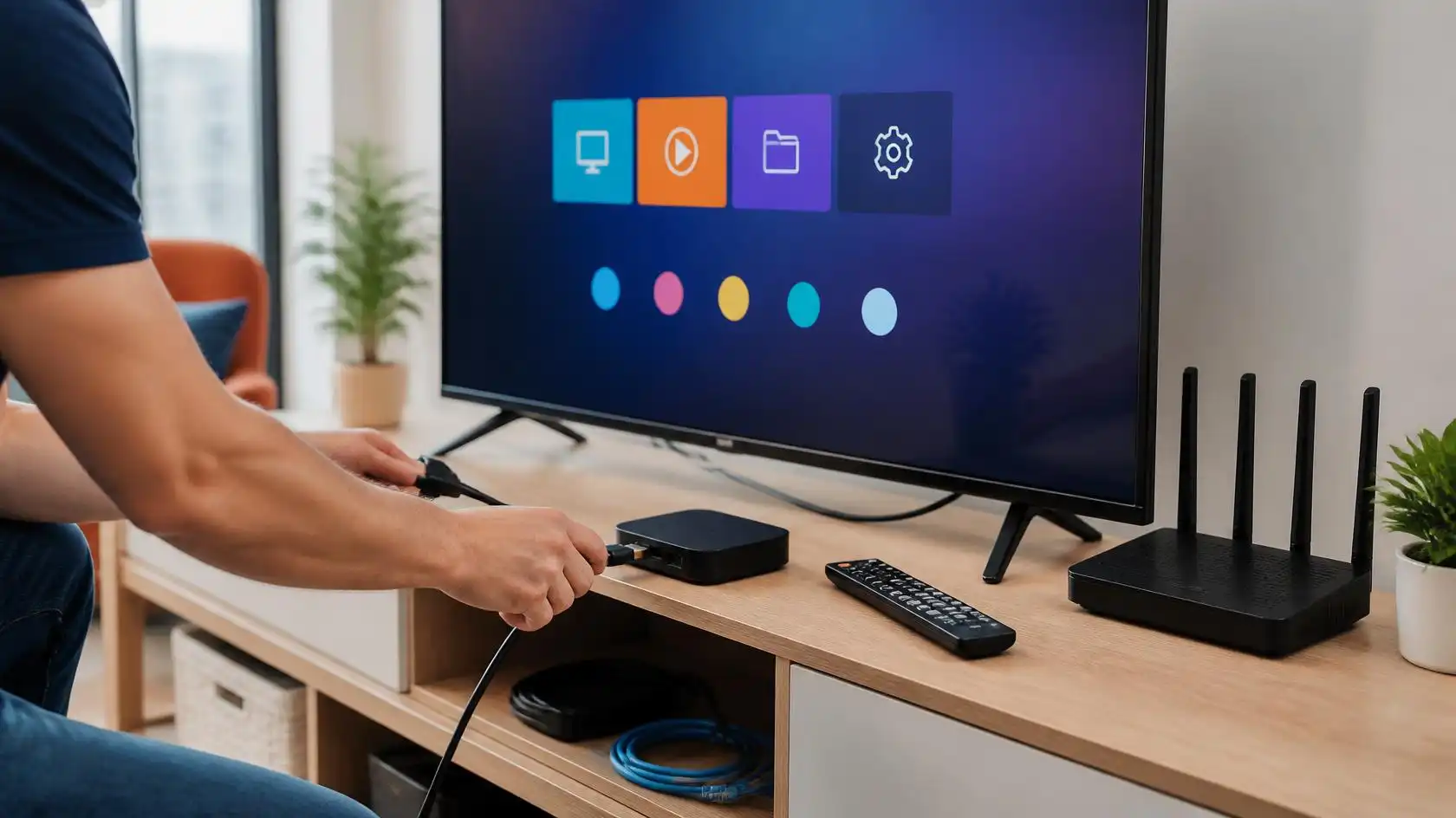
Plug the device into your home internet. If it has Wi-Fi and Ethernet, Ethernet can be useful if your router is near enough to connect with a wire.
Once the device is up and running, open its application store. Find the IPTV player that your provider recommends or one that works with the login method provided to you.
Don’t download apps from unknown websites just because they appear in search results. Before installing the application, verify its name.
Download and Launch an IPTV Player
After installation, open the player and look for the option like Add Playlist, Add User, Login, Xtream Codes or M3U Playlist.
The wording varies by applications. Not all IPTV players have the same login screen.
Select the option that matches the information provided by your provider. Choose the login option that matches the server address, username and password you received. If you get an M3U URL then choose the playlist option if possible.
Fill in the information carefully. One character missing or an extra space can prevent the account from loading.
Test Play and Load Your Channels
Enter your details and submit the information. Wait for the player to load your available content.
Depending on the app, you may see sections like live TV, movies, series, or other categories. The exact layout is player and service dependent.
Load one channel and wait for it to finish loading. Test picture and sound and stability before changing a few settings.
If the channel is not playing, don’t be in a hurry to reinstall everything. Check your login details, internet connection, player compatibility and see if other channels are doing the same thing.
How to set up IPTV on Smart TVs?
Smart TVs can offer a convenient IPTV experience as the player can often be run right on the television. But the installation process will be different depending on the television brand and operating system.
Choose an app that suits you.
Go to your TV’s official app store and look for an IPTV player that works. The available applications vary by region and the operating system of the TV.
Choose a format, but first check to see what formats the application accepts. This is important because an app that only accepts a playlist may not support the login method that comes with your account.
Install the app and launch it. You may have to agree to the app’s terms before you get to the setup screen.
Enter Your Iptv Info
Find the application account or playlist section. Copy and paste the provided details exactly as provided by your IPTV provider.
Make sure the application will prompt for a server address, user name and password, and that each field has the correct information. Unless the app specifically tells you to, do not combine them into one field.
Some players will require you to activate or pair the application manually. If so, don’t guess what information goes in which field, but follow the instructions displayed by the app.
Test the link
Load the playlist or account and open a few channels from different categories.
Testing multiple channels helps you determine whether the problem is a general one or only occurs with a specific stream.
If all is well, you can re-arrange favorites or change player settings to suit your taste. If the playback is unstable, check the network settings before adjusting advanced video settings.
IPTV Installation on Android , iPhone and Windows
The basic process of setting up IPTV is the same on mobile devices and computers, although the apps available to you may differ. Always use a player compatible with your OS.
Android phones
On Android, install a suitable IPTV player from a trusted application source if possible.
Launch the player and choose the login or playlist method that works with your IPTV account. Just add the information you have and let the player load the available content.
If the playlist does not load in the app, check the spelling of the server address and account credentials. Also, be sure that your Android device is connected to the internet.
Keep the app up-to-date when updates are available from its trusted source. After an operating-system update, an out-of-date application may behave differently.
iPhone & iPad apps
IPTV players for iPhone and iPad are determined by the app ecosystem of the platform. Search the official App Store for an available player app.
Check which input methods it supports before installing one. Your IPTV provider may give you a playlist URL or other login information.
Once installed, enter the appropriate details and wait for the playlist to load. If the app is asking for permissions, review what permissions it asks for before you go ahead.
If playback is not working for you, try another app with the same Internet connection. This will help determine if the problem is with the network or the IPTV player.
Computers Windows
IPTV is also available for Windows users via compatible desktop players or web-based solutions where available.
Install the chosen player from a reliable source and open it. Add your playlist or account information as the software allows you to.
Another useful troubleshooting option, if you have a computer, is to open a normal website at the same time. If websites are loading normally but IPTV is not, the issue could be with the player, your account details or a specific stream, not your entire Internet connection.
Troubleshooting Common IPTV Setup Problems
Even when you follow the right IPTV setup instructions, problems can occur. If you check one part of the setup at a time you can eliminate most basic problems.
IPTV App Not Working
If your login is rejected by the app, first try reentering the information manually.
Check the username and password for every character. If your provider gave you a server address, make sure you typed the whole server address correctly.
Do not insert quotation marks or spaces unless they are part of the provided information.
When the details don’t work, please make sure that your account is active and that you are using a player that supports the login method provided. If you require the account information to be verified, contact the provider.
Still buffering channels.
There are many reasons why buffering may occur. Your Wi-Fi connection may be unstable, your network may be busy or the particular stream you’re trying to watch may have an issue.
Try another channel first. If one channel is buffering and the others are working fine, the problem may be limited to that stream.
If many channels buffer, reboot your router and streaming device. Try moving closer to the router or use a wired Ethernet connection where appropriate.
And also see if there are other devices hogging a lot of bandwidth. The available network capacity can be affected by large downloads, cloud backups, gaming or multiple video streams.
Freezing or Closing of IPTV App
If the game continues to freeze, exit the game completely and restart the device.
2. Check to see if there is an available update for the device or app operating system. If the problem persists, you might want to try clearing the app’s cache, if the platform allows you to do so.
Try not to change lots of advanced settings at once, if you can avoid it. Change one thing, test the app. If needed, proceed to the next step.
If the other apps are working fine and the application is not, then the problem may not be with your internet connection but with the player.
How to optimize your IPTV setup
When the basic setup works, some practical tweaks can make using it on a daily basis a bit easier. These changes are about stability and convenience, not complex technical configuration.”
Use a stable internet connection
A good choice for a TV that doesn’t move much, if you have a router nearby, and your TV supports it, is Ethernet.
If you are using Wi-Fi, place the router so it can ‘see’ your viewing device without unnecessary barriers. Avoid placing the router in enclosed cabinets if at all possible.
If your house isn’t well covered by Wi-Fi, fixing the network itself may be a bigger benefit than repeatedly changing the IPTV player settings.
Keep Your Device and App Up to Date
Updates can enhance compatibility, correct errors, and address problems that impact the operating system or application.
Check for updates periodically, but use official update paths whenever possible.
And the device should have some free memory space. Some devices and applications may not perform as well if they have limited storage.
Don’t have unnecessary background activity
If your streaming device is downloading large files, or running multiple demanding applications at once, the resources available can be reduced.
Close applications you are not using and pause downloads that are not needed while troubleshooting playback.
This is especially useful when you want to see if the IPTV setup is causing any buffering or if it is the general network activity.
Common IPTV Setup Mistakes to Avoid
Many setup issues arise from users rushing through the initial install. Avoid these common mistakes and save time.
Wrong Login Format
One common mistake is entering the correct data into the wrong type of login field.
For example, a URL to a playlist shouldn’t be automatically treated as a username and password. Read the instructions displayed by the IPTV player and match the presented information to the suitable option.
If your provider gives you a specific way to set up, use that way instead of just picking some random other way.
Installing Untrusted Applications –
Do not download unknown APK files, modified applications or software from suspicious websites if an application is not in your typical app store.
Security and privacy risks due to untrusted software.
Whenever possible, use official application stores or other reputable software sources. Before you enter your IPTV account credentials, make sure you know which app you are using and why it requires those permissions.
Too Much Changing Settings
Advanced player settings can be useful but changing them without knowing what they do can make things harder to troubleshoot.
Leave the settings untouched. First check that the simple connection works.
If you have a specific problem you change one apparently relevant setting and test the outcome. This way you can see easier what really fixed or caused the problem.
Questions To Ask Before IPTV Installation
So getting one channel to play is not a successful configuration. You have to understand how your account, device, application and network interact together.
Does IPTV Player Deliver the Content?
The content is delivered via a compatible source and the application used to load and play the content is known as an IPTV player. Player does not automatically supply all channels or programs.
This distinction is important when you troubleshoot. The player opens fine, but if a supplied playlist won’t load, the problem might not be the application itself.
Only use services and content you are authorized to access.
Can I Use One Account On Multiple Devices?
Can I use my account on multiple devices ? This depends on the provider and the subscription / connection limits of the account .
It’s not possible to watch them simultaneously if you install the same player on several devices.
Please verify your account details or your provider’s terms before using the same login across multiple devices.
What to do after device change?
If you change devices, install a compatible player on the new device and input the appropriate account information.
Usually you don’t have to reconfigure your entire Internet connection simply because the viewing device changed.
However, some apps may store settings locally, so you may need to set favorites, playlists, or playback preferences again.
Frequently Asked Questions ( FAQ ) IPTV Setup
What is the basic IPTV installation process?
The basic process is to connect a compatible device to the internet, install a suitable IPTV player, enter the account or playlist details supplied by your provider and test playback.
The exact screens will depend on the app and device, but these steps will cover the basics of most setups.
How to install IPTV for the first time?
First, make sure your device is compatible and check your internet connection. Next, download a compatible IPTV player from a trusted source.
Enter the login details or playlist given by your provider. Wait for the content to load . Test a few channels and troubleshoot issues . Then tweak advanced settings .
Do I need any equipment for iptv?
Not necessarily . IPTV can be installed on a wide variety of compatible Smart TVs, streaming devices, Android devices, smart phones, tablets and computers.
The key is that the device has to have support for a suitable application or playback method for the service you are using.
Why is my IPTV buffering?
Buffering may occur due to poor internet connection, busy home network, weak Wi-Fi signal, the device’s performance issues or problems with a particular stream.
First, try another channel. Restart your router and device, reduce other network activity, and use Ethernet if possible.
What is the reason I get an invalid login when I login to my IPTV app?
Check carefully the username, password, server address or playlist URL Ensure that you are using the correct login method for your application.
If you have the right information, but your account still does not work, contact your IPTV provider to confirm account details are active and supported.
Can I Watch IPTV On My Phone?
Yes, if your phone’s operating system is compatible with an IPTV player. Download a suitable app from a trusted source and use the login method supported by your account.
The quality of your cellular or Wi-Fi connection can also impact mobile playback.
Is IPTV difficult to set up?
Once you have the right application and account information, the basic setup is easy for most supported devices.
The most important steps are to select a compatible player, enter the details correctly and test your internet connection. If something goes wrong, change one thing in the setup at a time rather than changing everything at once.
Conclusion
A good IPTV setup doesn’t need to be complicated Get the basics right: have a compatible device, a stable internet connection, install a reliable IPTV player and enter your account info carefully.
If something goes wrong check the setup systematically. Check your login method, check your network, switch to a different channel, reboot the device and don’t make unnecessary advanced changes.
IPTV SETUP BASICS These apply to many devices and players but menus and features may vary. If you are on Viking IPTV follow the setup info provided with your account, and use a compatible player for your device.
The goal is simple: first build a stable setup, and only then make small adjustments if you have identified a specific problem.
Trackbacks/Pingbacks