
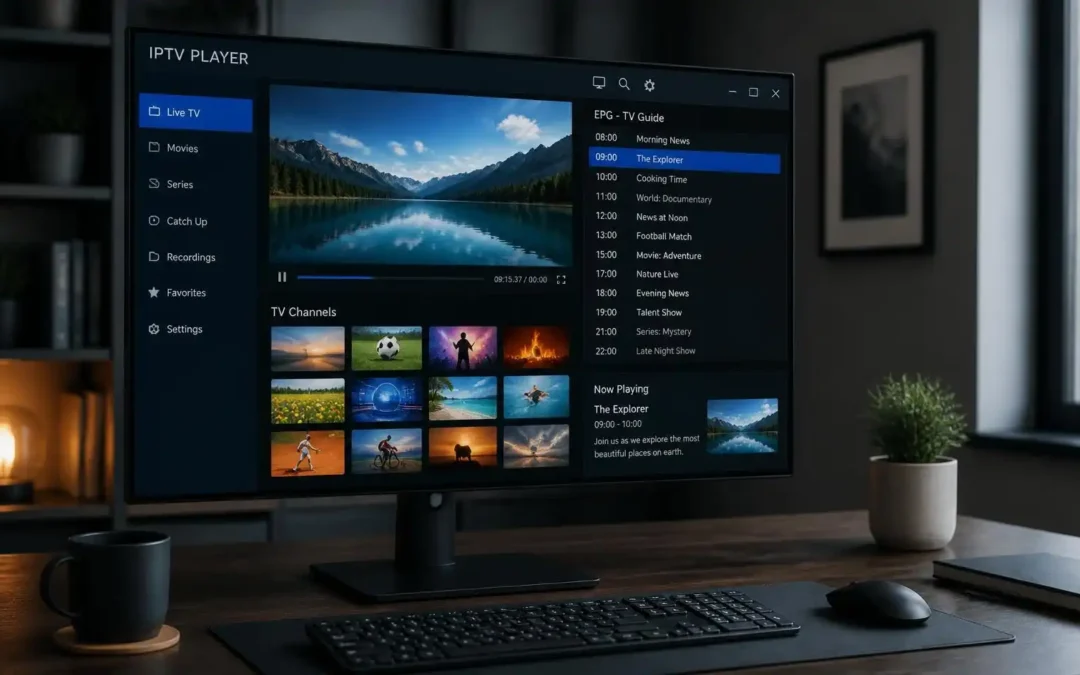
IPTV Player for Windows allows you to access compatible live TV streams and other supported content on your PC through an internet connection. First, select a reliable player like VLC, Kodi with IPTV Simple Client, or a dedicated IPTV app of your choice. Install the software, add your authorized M3U playlist or supported account details, and test a channel to ensure playback works. If you’re buffering, check your internet connection, try Ethernet and close bandwidth-heavy applications. Check that the playlist is compatible, that it supports the electronic program guide (EPG) and that it meets the system requirements and privacy features before picking the best IPTV player for Windows. The best IPTV streaming software for PC will depend on your provider, your viewing needs and your version of Windows.
IPTV Player Windows Full Installation and Streaming Guide
Watching internet television over a Windows computer can be easy if you use the right player and set it up correctly. Whether you want to watch live TV, organize your favorite channels or access supported on-demand content, an IPTV player can help you manage it all under one roof.
But finding an IPTV Player on Windows is more than simply downloading an application. You also need a compatible streaming source (the right playlist or login information), a stable Internet connection, and software that supports your provider’s streaming formats.
This guide will teach you about how IPTV players work, how to compare popular Windows applications and how to setup your first stream. You’ll also learn how to improve playback, secure your login information and solve common problems without wasting your time on unnecessary changes.
The instructions are for Windows 10 and Windows 11, where the app you choose works with those versions. Application and software release differences may result in different menu names and features.
What is IPTV Player for Windows?
What is IPTV? How does IPTV work? IPTV Explained
Internet Protocol Television (IPTV) is the delivery of television content over internet networks, rather than the traditional terrestrial, cable and satellite broadcasting.
An IPTV service may provide live TV, catch-up programming or video-on-demand content, depending on the service and the rights held. Typically you consume that content through a compatible app or web player.
An IPTV player is the software that receives and plays a stream that it supports. It may also categorize channels, display information about programs, keep favorites, and include playback controls.
The player and the service are not necessarily the same. Installing a player does not provide you with television channels/subscriptions.
What you need before you begin
Four Basic Things to Prepare Before Installing IPTV Player for Windows PC:
A Windows computer that meets the system requirements of the application.
A stable internet connection that can handle the video quality you want to stream.
A compatible authorized IPTV source
Your provider provides a playlist URL, playlist file or account information.
Some providers offer an M3U or M3U8 playlist. Some use a method specific to the application to log in, such as an Xtream Codes compatible connection. Not every player supports all methods.
Check your provider’s instructions before choosing software. It’s a simple step, but one that avoids the common headache of trying to install a player that can’t accept the connection details you’ve been given.
IPTV Player versus IPTV Subscription
An IPTV player is a viewing tool and an IPTV subscription or content source is the access to the actual programming.
The player is like a media app, the subscription is where the content comes from. It may be possible to use one compatible player with different authorized playlists, but this depends on the application features and the provider’s requirements.
Free player doesn’t make paid channel subscription free. Likewise, not all Windows IPTV streaming apps are necessarily compatible with a subscription.
Before you pay for a service, check its: supported devices, connection limits, renewal terms, channel availability and cancelation policy. Select services that are licensed to distribute the content in your country.
How to Select the Best IPTV Player for Windows
Login Support Playlist Compare
First see how the application connects to your IPTV source. M3U and M3U8 playlists are popular ways of organizing stream addresses. Some providers also provide account based connections.
If your provider has given you a playlist URL, choose a player that has the ability to import a remote playlist. If you get an M3U file that is downloadable, make sure the software can open local playlists.
Ensure the player explicitly supports the required login method for account-based connections. Don’t assume that every application uses the same server address, username and password.
Also see if the application can import an electronic program guide (EPG). EPG is the guide data your provider sends you. It allows you to see program schedules.
Evaluate Features That Matter in Everyday Use
The best IPTV player for Windows isn’t about how many features an app has, but how you view television.
Look for hands-on skills like:
Search channel list and channel categories.
Favorites. Handy interface.
EPG support if program schedules are important to you.
Support for your stream formats and audio codecs.
Aspect ratio and playback controls where supported, subtitle.
An easy way to update playlist and connection settings.
Consider if you need recording, catch-up and timeshifting. And these features are dependent on the application, the stream type, and the provider capabilities.
Finally, verify the software updates, privacy details, pricing, and system requirements. If the app has fewer features, but works reliably for your particular playlist, that may be a better fit.
Windows players to watch
There are several established applications that can help you to assess your options. Their appropriateness will depend on your source and the features you need.
VLC Media Player: VLC is a general purpose media player that can open many local media files and supported network streams. It’s good for testing a stream URL directly but it doesn’t support all of the IPTV specific features out of the box.
Kodi with IPTV Simple Client: Live TV is possible on Kodi through its add-on IPTV Simple Client. It supports compatible M3U playlists and EPG data, so worth a look if you’re looking for a television-style interface. Setup is about setting up the add-on, not just opening a playlist.
Dedicated IPTV apps: Dedicated apps could provide categories of channels, favorites, EPG integration, and account-based connections all in one interface. Features, fees, availability and compatibility vary, so please check with the developer before installing.
See the VLC website , the Kodi website and the Kodi IPTV Simple Client documentation for official information.
How to Install IPTV Player on Windows PC
Step 1 Download and Install a Reputable Player
Verify the connection method of your provider and your Windows version, then select your application.
Take the installer from the official website of the developer or from another reliable distribution channel. Avoid unknown download mirrors, installers that bundle other software, and websites that promise premium channels just for installing a player.
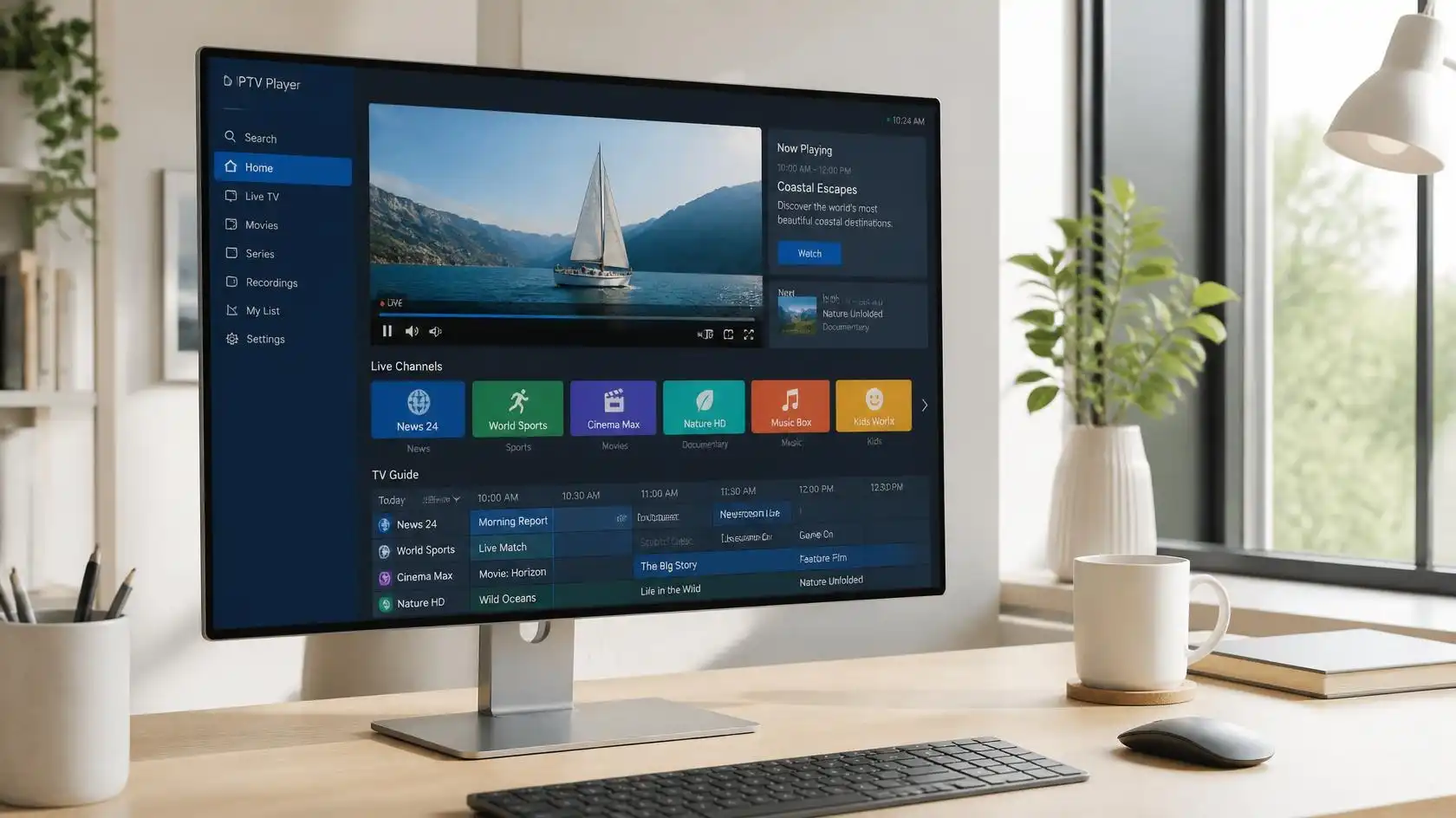
Just run the installer and follow the instructions. Review any optional items before accepting each offer. Step 4: When installation is finished, launch the application and update if needed.
Do not ignore a security warning on Windows automatically. Confirm that the installer is from the expected publisher and that you intended to download it.
Step 2. Add Your IPTV Playlist or Account
The exact steps will depend on your software, but the process is generally the same.
Open the player and go to its playlist, or tv or source settings.
Choose to add a playlist, network stream or supported IPTV account.
Input the M3U URL, choose the local playlist file or provide the connection details from your service.
Look for typos, extra spaces and wrong characters.
Save the configuration and let the application load the source.
For VLC, you can usually select Media > Open Network Stream, enter a supported stream URL, and begin playback. This is useful for testing a single stream but it is not the same as setting up a full IPTV channel library.
Open the add-on repository and then go to the configuration of the IPTV Simple Client for Kodi and select the preferred local or remote playlist option . If your source has compatible EPG data, add it, and then refresh the TV listings.
Never enter your credentials into a player if you don’t know the source, and how it will treat your account information.
Step 3: Load Channels and Playback Testing
Once you’ve added your source, wait for the playlist or channel list to fully load. Large playlists may take longer to load, especially if the application also retrieves program information or channel logos.
Open a channel that your provider says is available. Verify that picture, audio and program information work correctly.
If the channel is not working, try another authorized channel before changing several settings. Just because one stream is down doesn’t mean the whole playlist is broken.
If you are using a remote playlist, make sure that the URL is still valid and that your subscription or access permissions are active. If you are using a local file, make sure you have selected the most recent version.
When playback is working, add some favorites and organize into categories if your application supports them. Store your original playlist or login details somewhere safe, in case you need to reconfigure the application.
How to Improve IPTV Streaming Quality on Windows PC
First Check Your Internet Connection
It can happen often when the stream is not able to receive data fast enough or consistently enough. It could be your connection, interference from other Wi-Fi, network congestion, streaming server or a combination of them.
First, test the internet connection on the same computer. If possible connect your PC to the router using an Ethernet cable. A wired connection can reduce wireless interference, and allow for easier troubleshooting .
If you’re on Wi-Fi, move closer to the router or switch to a less crowded wireless band that your equipment supports. Stop large downloads, cloud backups and other bandwidth-heavy activities during testing.
Don’t think that one speed-test result means smooth playback. Performance is also affected by network consistency, the stream bitrate and the provider’s server capacity.
Change video and playback settings
If the player gives you options for the video quality, try a lower resolution and see if the playback is more stable. Higher resolutions generally need more data but actual requirements vary depending on compression and bitrate.
If your application supports it, turn on hardware acceleration. Hardware decoding can relieve some of the CPU load on supported hardware, but driver issues or unsupported formats can cause playback problems. If you recently changed that and are now experiencing stuttering or black screen, revert it back and see how it goes.
Keep your Windows and graphics drivers reasonably up to date with trusted sources. “Close applications you don’t need if your computer is struggling with high CPU or memory usage.
Don’t change several playback settings at once. Try one adjustment at a time, play the same stream again and see if the result is better. It’s easier to identify the real cause.
Less buffering, no unnecessary changes
If channels keep pausing, use this troubleshooting sequence:
Restart the stream and see if the problem is on one or several channels.
Restart the player and computer if necessary.
Test the same stream over Ethernet or other reliable network.
End other downloads and streaming sessions.
If you have several channels down, check your provider’s service status or contact their support.
Some players allow you to control the buffer, but increasing the buffer can add a delay before playback starts. It can’t fix an offline server, or an expired playlist, or basically an unstable connection.
VPNs aren’t a cure-all for buffering. It can help in some network-routing situations, but it can also add latency or reduce available bandwidth. Use only one if it fits your privacy, network and provider’s terms.
Common IPTV Problems on Windows and Solutions
Playlist Won’t Load or Missing Channels
If your playlist does not load, first check that the address or file is correct. A URL that is copied might have an extra space, a missing character, or an incomplete query string.
Then check that the playlist has not expired and that your account has access to it. playlist addresses, authentication requirements, or channel availability are subject to change.
If you are using an M3U file, try opening it with a text editor and check that it contains playlist entries. Do not upload this file to the internet. It might contain private stream urls or access tokens.
If only a few channels are missing, the problem might be with individual stream links or changes on the provider’s side. If the problem persists, update the playlist using the method supported by the application. Then ask your provider to check the problem channels.
Black Screen No Sound or Playback Error
A black screen can also be caused due to an unavailable stream , unsupported video codec , playback problem or the application video output issue .
Try a different authorized stream. If one channel works, and the other doesn’t, the problem might be with that stream, not your computer.
If streams aren’t working, restart the player and check for app updates. If appropriate, test a supported stream URL in a second trusted player. This comparison can be useful to distinguish between a source and an application problem.
For video without sound, check the output device in Windows, the volume of the player, and the options for the audio track of the stream. For audio-only, look at video decoding and graphics acceleration settings.
Don’t download random codec packs or disable security software to make a stream work. Instead, use documented codec options and reputable software sources.
Apps that crash, freeze or run slowly
Start with the basics, close the application, restart the application and check if other demanding programs are running. Make sure your PC meets the system requirements for the application.
If the problem began after an update, check the developer’s support information to see if there are any known compatibility issues. Apply fixes available from official sources.
If your player has a reset or configuration-backup feature, save any settings you’d like to keep before resetting. It should be a last resort, not the first response to every error.
Determine if the problem occurs with one playlist or with all media. If the player plays local videos but not one of the IPTV sources, it may be a network, authentication, or stream format issue.
If you contact support please note down the error, the windows version, the player version and if it is only one channel or all channels. Never include your password or full private playlist URL in a public support post.
IPTV Security, Privacy and Responsible Use
Download Software and Streams From Trusted Sources
Picking the right IPTV streaming software for your PC is more than just convenience. Unofficial installers and altered apps can expose your computer to unwanted programs or other security risks.
Download the software from the official developer or a trusted store. Enable Windows security protections, install updates and check what permissions an application is requesting.
Be careful of sites that ask you to install extra executables, browser plugins or unknown certificates to be able to play a stream. A legitimate player should not require you to give up basic security precautions with no clear and verifiable reason.
You should also look at privacy policies where available, especially if the application collects usage information or stores account details.
Protect your playlist & login details with a password
Treat your playlist URL and IPTV login details like passwords when they provide access to a paid service. Do not post them in forums, send them in public chat rooms, or share screenshots that contain account information.
Use unique credentials where the provider supports it. If your app stores passwords: Secure your Windows account, and don’t use shared computer profiles for private subscriptions.
Check what devices your provider supports multiple connections at the same time. If someone gets hold of your access details, ask the provider what you can do to change them or end existing sessions.
Be cautious with remote playlist links, as they may contain authentication tokens. If you require technical help, please make sure to hide sensitive parts of URLs and account names.
Confirm Content Ownership and Service Conditions
Some IPTV services don’t have the legal right to broadcast their content. Before you subscribe, check whether the provider is licensed to offer the channels and programs you want to watch.
Review the service terms, countries covered, payment terms, and cancelation process. Be wary of vague ownership details, over-the-top promises, or requests for payment through means that offer little protection.
The media player doesn’t decide if a certain stream is legally allowed. Your duties depend on the content, the source and the laws applicable where you live.
The most sensible place to start for safe and responsible viewing is to use a trusted application with an authorized content source.
IPTV Player for Windows – Frequently Asked Questions
What IPTV Player Can I Use on Windows?
The best choice depends on your needs. VLC is good for testing individual supported network streams. Kodi with IPTV Simple Client has playlist and programme-guide features. Dedicated IPTV apps could offer a more integrated channel interface.
Compare playlist compatibility, EPG support, ease of use, privacy, and cost before choosing. No single application is guarantyd to work with all providers.
How can I watch IPTV on Windows without the app?
Yes, provided your provider supports a compatible web player. In a supported browser, sign in to the provider’s official viewing page using its instructions.
The ability to play back in the browser depends on the provider’s technology, supported formats, account permissions, and browser compatibility. If no web player is available, you will need a compatible application or another supported way to view it.
Why My IPTV Player Keeps Buffering?
Buffering can be caused by unstable connections, Wi-Fi interference, busy networks, lack of system resources, or problems with the streaming server.
Try another channel. Pause downloads. Try ethernet. Check provider service status. If the problem is with just one stream, ask the provider to investigate that channel.
Can I play M3U Playlist on Windows PC?
Yes, as long as the player you choose supports M3U playlists and the playlist points to streams that are compatible. Some applications can load a remote playlist URL, others can import a local M3U file.
Follow the player instructions and use a playlist from an authorized source. M3U support does not imply support for all stream formats or authentication methods.
Is Free IPTV Player Enough for Watching Live TV?
A free player may be sufficient to play supported streams but doesn’t automatically grant access to television channels. You still need an available authorized content source.
Some apps are free and some are paid for certain features or have optional paid versions. See the latest terms and features before you buy.
Can I Use a Single IPTV Subscription On Multiple Windows Devices?
This will depend on your provider’s subscription policies, device limits and simultaneous stream allowances. Some services limit the number of simultaneous connections even if the same account can be set up on multiple devices.
Check the provider’s terms before adding more computers. If playback stops when another device starts streaming, your account may have reached its connection limit.
Is IPTV Safe on Windows?
You can safely use IPTV playback when you choose trustworthy software, protect your account details and access content from authorized sources. Risks are from malicious installers, exposed playlist URLs, trick subscriptions, and untrusted streams.
Install apps only from trusted sources, keep Windows up to date, and don’t share private credentials. If a service wants you to disable security protections or install strange software – stop and verify the request before proceeding.
Conclusion
It’s much easier to pick an IPTV Player on Windows if you start from compatibility instead of a long list of advertised features. Select your playlist format, choose a trusted application, meticulously configure your source, and test playback before adjusting advanced settings.
If you run into buffering or playback issues, troubleshoot one variable at a time. Check your connection . Compare channels . Check access to playlists . Check application settings . Reinstall the software .
The same practical principles apply to readers exploring Viking IPTV: Confirm the supported connection method, use accurate setup instructions, and protect your account information. The aim is a Windows IPTV system that is easy to maintain, reliable under your network conditions, and appropriate for the content you are entitled to watch.