
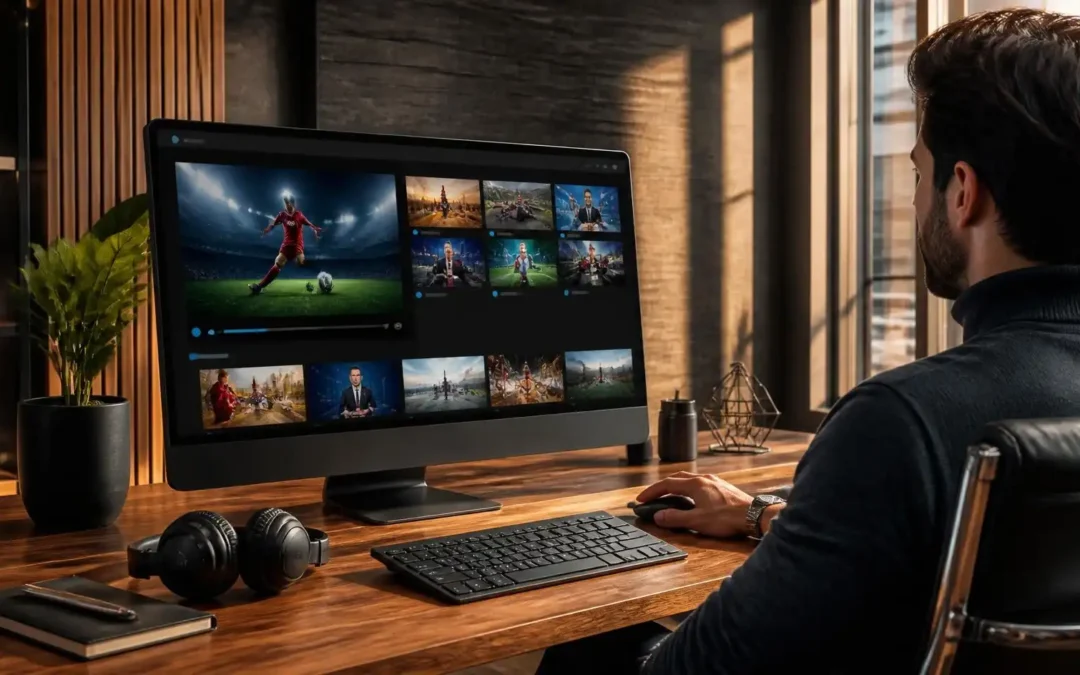
To watch live TV and other IPTV content on a Windows PC or laptop you will need a compatible IPTV player for IPTV on Windows. To begin, you’ll usually need a stable internet connection, an IPTV subscription, and the correct M3U playlist or login details from your provider. In this guide we will show you how to install IPTV on Windows, choose an IPTV player for Windows, add your playlist, improve your streaming performance and troubleshoot common problems like buffering, freezing and playlists not loading.
Complete Setup and Troubleshooting Guide for IPTV on Windows
Watching IPTV on a Windows computer can be an easy way to get live TV, on-demand programming and other streaming services all from one device. You don’t need a TV box if you already have a Windows PC or laptop and a decent internet connection.
The main problem is to pick a good IPTV player for Windows and enter your service details correctly. Some IPTV providers may give different login information such as an M3U playlist URL or Xtream Codes credentials. The exact configuration depends on the player you choose.
This guide takes you from start to finish on IPTV on Windows. You will learn what you need, how IPTV players work, how to add a playlist, how to improve playback and what to look for when something goes wrong.
The instructions are for general IPTV setup. If you are using Viking IPTV, do not assume that every IPTV player will have the same settings, use the connection details that come with your account.
What You Will Need for IPTV on Windows
Before you install anything, setup your Windows PC and IPTV details. Most installation problems are caused by a lack of one of these basic requirements or by a wrong entry.
A Windows PC or Laptop
Many modern Windows computers allow you to watch IPTV. You can use a desktop PC or a laptop, as long as the system can play the media player of your choice smoothly.
Keep Windows updated when you can. Also make sure you have enough free space to install the applications you want. Normally you don’t need a lot of storage for IPTV itself as streaming content is delivered to you over the internet, rather than saved permanently to your computer.
A wired connection can be handy if your computer is near the router. Wi-Fi also works well, if the signal is stable.
A reliable Internet connection
Your Internet connection is very important for IPTV streaming. If your connection drops frequently it can cause buffering, freezing or interruptions in playback.
Don’t download big files while testing IPTV. Other devices on the same network may also affect performance.
If you can, test your internet connection when there aren’t any other big downloads or streams happening. This will give you a better idea if a problem is from IPTV or your network.
IPTV – Playlist Details or Login
Typically, your IPTV provider will give you connection information after you subscribe. Depending on the service, this could be an M3U playlist URL, an EPG URL, or Xtream Codes information.
Please keep these details confidential. Never post your password / username or playlist url publicly.
Make sure you spelled and capitalized your credentials exactly before you begin setup. A single missing character can stop the playlist from loading.
How Does IPTV Work on Windows?
Knowing the basics of the process makes it much easier to set up. Normally, IPTV channels don’t come directly into your Windows computer through Windows itself.
Instead, an IPTV player connects to the playlist or account provided by your IPTV service.
IPTV Service Provides Content
Access information from an IPTV service tells a compatible application where to find the available content.
The information may be provided in the form of a playlist URL or account credentials. Then that information is used by the player to request the available channel and content information.
The provider is doing a different job from the player. The service connects you to the content and the player shows that content on your computer.

IPTV Player Handles Playback
IPTV Player for Windows is a software for loading and playing IPTV streams.
Different players have different features and interfaces. Some simply play a playlist, others have electronic program guides, favorites, subtitles, multiple playlists or media libraries.
An invalid IPTV subscription cannot be fixed by a player. Switching players may not solve the underlying problem if the supplied playlist or credentials aren’t working.
The Stream Your Internet Streams
Once you select a channel the player asks for the stream over your Internet connection.
Then the stream is processed and shown on your Windows screen. In case the network is not stable, the player can be in pause mode and wait for more data .
So a good setup needs three things: a working IPTV service, a compatible player and a reliable internet connection.
How to Setup IPTV on Windows
There are several ways to set up an IPTV on Windows. The specific buttons will vary from application to application, but the overall process is usually the same.
Pick a Compatible IPTV Player
Choose an IPTV player that is well known and supports Windows, and the format of playlist or login provided by your service provider.
Download applications from trusted sources only. Avoid downloading media-player software from unknown websites, as it may include unwanted programs from unreliable sources.
Make sure the player supports the login method you prefer before installing it. For example, if your provider gives you an M3U URL, make sure the app supports M3U playlists.
Player Install
Download the correct Windows application, then run the installer and follow the on-screen instructions.
Windows will ask you to confirm that you want to allow the app to make changes to your computer. Do this only if you trust the source and can tell what software you downloaded.
Open the player after you have installed it.
You might have to grant some apps additional permissions or settings the first time you open them. Follow the directions of the application itself, and do not change advanced Windows settings unless it is necessary.
Add Your IPTV Information
Look for an option like Add Playlist, Add URL, Add User, Xtream Codes or similar.
Choose the one that matches the information from your IPTV provider.
3. If you are using an M3U playlist, copy and paste the full URL into the playlist field. If the service has Xtream Codes info, enter the server address, username and password in their respective fields.
Save the info, and allow the application to load the playlist.
How to Add an M3U Playlist
M3U is a common playlist format used along with IPTV players. The exact interface will differ from application to application but the concept is simple.
Find the option “Playlist”
Open your favorite Windows IPTV player and find the option to add a playlist.
You will find it under a menu called Playlists, Sources, Media or Add Content. Some apps will give you the option right away when you first open the app.
If your provider has given you an online M3U address, then you should choose the option to add a playlist from URL.
Insert the M3U URL
Copy the full M3U URL from your IPTV provider and paste it in the right field.
Avoid typing the address manually as long URLs are easy to enter incorrectly. I love how simple it is to use.
If the playlist contains authentication information, treat the URL as a password. Anyone who has a URL of a private playlist, could use it potentially.
Wait for the playlist to load up
After saving the URL, give the application time to process the playlist.
A large playlist can take longer to load than a small one. Once processing finishes, the player may organise channels into categories.
If nothing appears, do not immediately reinstall Windows or the player. First check the playlist address, internet connection, and provider status.
Setting Up IPTV Player on Windows
Once your playlist has loaded, the next step is to learn how to navigate efficiently around the player.
Discover Channel Categories
Most IPTV players have groups of channels. The names are based on how the provider has constructed its playlist.
Use the category menu to find the type of content you are looking for. A well organized playlist will make it much easier to navigate than scrolling through hundreds or thousands of entries.
If the player can choose to hide categories you don’t want, use it for a cleaner interface.
Search & Favorites
If the playlist has many channels, a search function can save time.
Simply type the name of the channel into the search field instead of scrolling through a long list. If your player has a favorites section, add channels you watch regularly to it.
This is especially useful when using IPTV on PC as a keyboard will make it easy to search for text.
Review Available Player Features
Different applications have different features. EPG, subtitles, audio tracks, playback controls, screen resize or favorites may be to some peoples’ liking.
After the first successful playback, discover the basic settings.
Don’t change advanced buffering, decoding or network settings without a reason. Sometimes changes made in error can make playback less stable than it was.
How to Optimize IPTV Streaming on Windows
If the player is configured properly, then buffering can happen if there are problems with the network or computer. Here are practical steps to help you figure out the cause.
Use a stable network connection
If your PC is close to your router and it has Ethernet, a wired connection can provide a more stable connection than weak Wi-Fi.
If you are on Wi-Fi, put the computer where it will get a good signal. Don’t test IPTV from a location where the signal drops out frequently.
Restarting your router may also help if you have had a temporary connection problem with the network.
Decrease Network Activity
During IPTV testing, pause any unnecessary downloads, cloud synchronization, large game updates and other high bandwidth activity.
Other users or devices on the same network may also use up bandwidth.
If IPTV is working fine when the network is quiet, but not when a bunch of devices are active, the network load could be part of the problem.
Keep Your Computer and Player Up to Date
Select a current version of Windows and keep your IPTV player updated when updates are available from its legitimate source.
You can fix software bugs and compatibility issues by updating it. But an update doesn’t always mean a fix to every streaming problem.
Close any apps that might be consuming too much CPU, memory, or network resources while streaming.
Common IPTV Errors on Windows
Even after a successful installation, users can face some problems. One good way to go about it is to test whether the problem occurs in one channel, the entire playlist, the app, or the internet.
IPTV Playlist Not Loading
If your playlist does not load, please check that your URL is complete and typed in correctly.
Ensure you have an active internet connection and try to open the playlist again. If the same playlist fails multiple times please contact your IPTV provider and make sure that your account and connection details are active.
Don’t just keep creating new accounts and changing random player settings without finding out what the problem is.
Channels Keep Buffering.
Buffering can happen due to an unstable network, busy network, an overworked stream, or issues outside of your computer.
Try a different channel first. If only one channel buffers and others play normally then the problem could be specific to that stream.
If you are buffering all channels, test your Internet connection and cut back on other network activity. You can also try another supported player to see if the problem is specific to the application.
IPTV Player Freezing or Crashing
If the player freezes, close it completely and open it again.
Check to see if other applications are using a lot of system resources. Computer Overload The computer may be overloaded.
If the problem continues, update the player from its official source or try another compatible player. Never download modded versions from unofficial sites.
Common Setup Errors
Most of the IPTV problems are not because of complex technical failures but simple setup mistakes.
Entering Wrong Credentials
Check each field. Make sure you enter your usernames, passwords, server addresses and playlist URLs correctly.
Do not accidentally paste a space at the start or end of a credential.
If you are using password managers or copy and paste information, make sure the correct value is going into the correct field.
Selecting the Incorrect Login Method
A provider may support multiple connection formats. Do not put Xtream Codes information in an M3U field or use an M3U URL as a regular username and password.
Use the format your provider has specified.
If you are not sure which option to choose, please refer to the setup instructions that came with your account.
Installing Untrusted Software
Beware of downloading IPTV players from dubious websites just because they promise to have extra channels or special features.
Use legitimate sources of software wherever possible. Don’t turn off Windows security features, and scan any unexpected files before opening them.
A trustworthy setup should not demand you turn off your computer’s security protections just to install a media player.
IPTV on Windows vs Other Devices
Windows has a lot of advantages for IPTV, especially for those who want to watch on a larger screen or prefer keyboard-based navigation. But every device has its own strengths.
Windows computers and laptops
If you need to do a quick search, manage playlists or watch IPTV while working at a desk, it is useful to have a Windows computer available.
A laptop also provides you with flexibility as you can use the same device in different locations.
The main disadvantage is that a computer may not be as convenient as a TV-based setup for the user who wants a remote-controlled viewing experience.
Smart TVs & Streaming Devices
Smart TVs and streaming devices offer a more traditional TV experience.
They tend to be more comfortable to use from a sofa with a remote control but the available IPTV apps will vary by device and OS.
If you already have IPTV on another device, check with your provider to ensure they support the same account and login method before assuming the setup will be the same.
Choose the Right Option
The best device is up to how you plan to watch.
Windows is perfect for those users who want a computer, keyboard, larger desktop interface and easy access to browser based resources.
If you spend most of your time on the couch, a dedicated TV might be more comfortable. If you’re happy with your current setup there is no need to change devices.

Troubleshooting IPTV on Windows
If your IPTV stops working, don’t change several settings at the same time. A simple troubleshooting sequence makes the cause easier to find.
Test Internet First
Open up a few normal websites or some other legitimate streaming service.
If other internet services are also slow or unavailable, check the network before changing IPTV Settings.
Reset your router if needed, then reconnect the Windows computer. If possible , compare Wi-Fi and Ethernet to see if the type of connection has an impact on the problem .
Choose another channel or playlist
If just one channel fails, try several others.
If all other channels are good , then the problem is likely with the stream itself and not your entire IPTV service.
If the whole playlist is not available, check your account details and contact your IPTV provider if you need to.
Re-check Player Configuration
If you are connected to the Internet and the service appears to be active, verify the player settings.
Check the playlist URL, login method, server address and any required account details.
If the same credentials work in another compatible app, then the original player might be having a compatibility or configuration issue.
Tips for an Improved IPTV Experience
Little improvements can ease IPTV on PC especially if you watch regularly.
Arrange Your Favorite Channels
If your player lets you create favorites, don’t just rely on a huge playlist.
Favorites Create a special list of your most used channels. This makes the player easier to navigate and cuts down on scrolling.
You can also remove or hide categories you never use if your application allows it.
KEEP IT SIMPLE
You do not need to install several IPTV players simultaneously.
Start with one good player. Before you try other apps, learn its basic controls and ensure that your IPTV connection is working.
A simple setup also makes troubleshooting easier because there are fewer variables.
Keep Your Account Information Secure
The login details of IPTV are private account information.
Do not post M3U links, usernames, passwords or private server addresses on public forums or social media.
If you suspect that your credentials have been compromised, contact your provider to ask what steps are available to you to secure the account.
IPTV on Windows Frequently Asked Questions
Can I watch IPTV on a Windows PC?
Sure. To watch IPTV you will need an IPTV player that is compatible with Windows PC or laptop and connection details from your IPTV provider.
The player loads the available content and manages playback on your computer.
How to use IPTV player for Windows?
IPTV player for Windows is a software that can load IPTV playlists or account information and play compatible streams.
Different players support different formats and features, so check the compatibility before you choose one.
How to Set Up IPTV on Windows?
1. Download and install a compatible IPTV player from a reputable source. Finally, enter the playlist URL or account details provided to you by your IPTV provider.
Load the playlist and select a channel to see if playback works.
Do I need special hardware for IPTV on PC?
Usually you don’t need any special IPTV hardware to watch IPTV on a Windows computer.
Main requirements are compatible Windows system, suitable player, working IPTV account and reliable internet connection.
Why is my Windows PC buffering all the time on IPTV?
There are several reasons for buffering, like unstable internet connection, high network traffic, problems with a specific stream or issues with the application.
Change channels, reduce network activity and test your connection before changing advanced player settings.
Can I use M3U playlist on Windows?
Yes, provided the IPTV player you choose supports M3U playlists.
Simply copy the M3U URL provided by your IPTV provider and paste it in the playlist or source section of the player.
Why does my IPTV playlist work on one player but not on the other?
Some players support some formats, authentication methods, codecs and playlist features.
If your account works in one supported player but not in another, check the supported format and configuration in the second application. If your provider has more than one login method, you may need to use another login method.
Conclusion:
Setting up IPTV on Windows doesn’t have to be difficult. The basic process entails selecting a compatible IPTV player, installing it safely, adding the correct playlist or account details and testing playback.
When you have problems, start with the basics. Before you start making advanced changes check your Internet connection, check your credentials, try another channel and check the configuration of the player.
Viking IPTV If you are using Viking IPTV, have the setup information that comes with your account ready when you are setting up your Windows player. Having the right connection format will make the setup process much easier.