
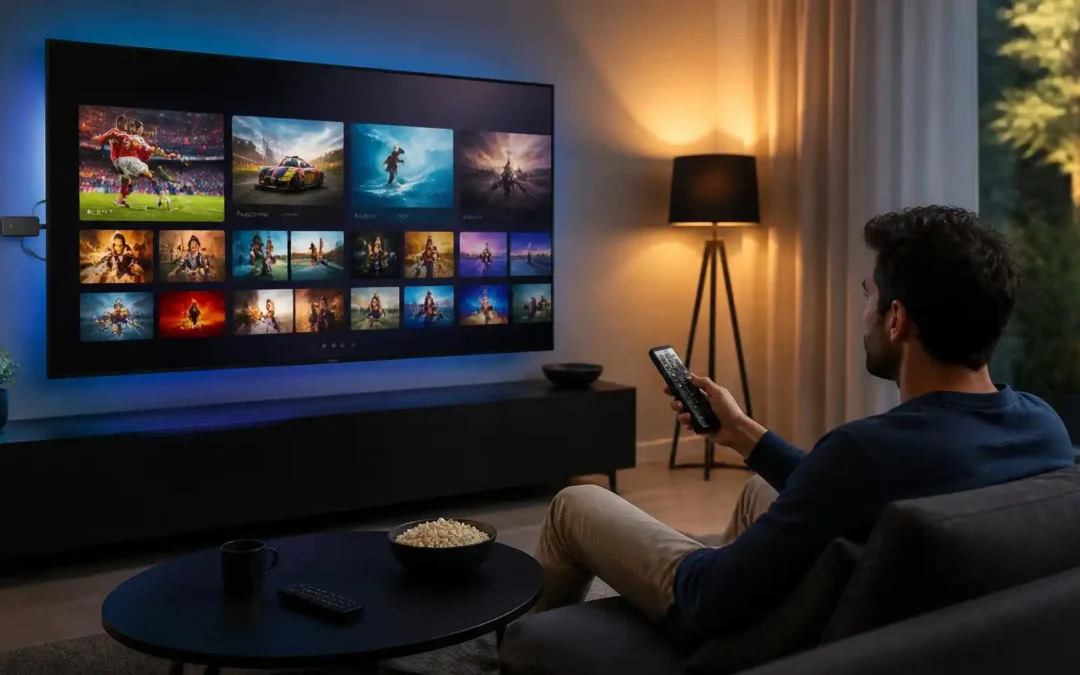
In this guide, we will discuss everything you need to know about IPTV on Firestick, from setting up your device and installing a compatible IPTV player to adding your IPTV details and watching live contents. It also addresses common issues such as buffering, missing channels, login errors and apps that refuse to load. If you are installing Firestick IPTV for the first time or looking to improve your existing setup, you will find practical steps, troubleshooting tips, security advice, and useful information to help you use IPTV on your Fire TV Stick with more confidence.
IPTV on Firestick: The Complete Guide to Set Up, Install, and Stream
One of the most convenient devices to stream content on a TV is the Amazon Firestick. It connects to your TV with an HDMI port and uses your internet connection to access streaming apps and other online services.
If you want to start using IPTV on your Firestick, it can be a little confusing at first. You will need a compatible IPTV player, a good internet connection and the correct login or playlist information from your IPTV service. You might also have to change a Firestick setting before you can install an application that isn’t available directly through the Amazon Appstore.
This step-by-step tutorial will guide you on how to watch IPTV on Firestick. You will learn what you need, how IPTV players work, how installation works in general, how to enter your service details, and what to do when something goes wrong.
The steps may differ a little from one Fire TV software version to another, and from one IPTV app to another, but the basic process is similar.
What You Need Before Using IPTV on Firestick
Before you start the installation, get your Firestick and IPTV information ready. You can avoid many common setup problems by performing this first.
Working TV and Firestick
You will need an Amazon Fire TV Stick or compatible Fire TV device connected to your television. Make sure your device is powered on. Make sure your TV is on the Firestick home screen.
Your firestick also requires an active internet connection. You can connect it with Wi-Fi from the Fire TV network settings.
If the Firestick is connected to the internet, go to another streaming app and check that it can load normally. This helps to make sure your connection is working before you start IPTV setup.
IPTV software player
Usually, an IPTV subscription is not a television application in itself. Instead, you normally load the service information provided by your provider into an IPTV player.
The player supports many login methods, such as an M3U playlist or Xtream Codes style login. Which options are available to you depends on the app or service you are using.
Choose a player that is compatible with your Fire TV and install it following the player’s instructions.
Your IPTV Login details
Depending on your IPTV provider, you might get a username, password, server address, playlist URL, activation info, etc.
Have this information in front of you before you start.
Carefully check every character when entering it. One wrong letter, number, slash or symbol will stop the service from connecting.
If you are using Viking IPTV, enter the account or setup information that came with your subscription, NOT information found on another website.
How to Setup IPTV on Firestick
To get an IPTV player on your Firestick, you’ll usually have to locate an available app, or download an app package using an approved installation method.
Don’t worry if your screen looks a little different, the exact menus can change with Fire TV software updates.
Search the Amazon App Store first
First, choose Find or the search option on your Firestick home screen.
Enter the name of the IPTV player that you want to use.
If the application is available in the Amazon Appstore, select the application and then select the option to download or install it.
The easiest way to install most apps is via the official app store, as Firestick will do the install for you automatically.
After installation completes, launch the app from your Apps & Channels.
Use the supported installation method of your app
All IPTV players are not available on the Amazon Appstore. If this is the case, the application developer may propose an alternative installation method.
If you’re downloading an app from outside the Amazon Appstore, follow the developer’s official instructions and be sure you’re downloading the correct app.
Don’t just go to random APK websites that pop up in search results. Unknown files may contain unwanted software or modified versions of applications.
Fire TV settings and terminology can also differ between versions. Follow the instructions on your current device instead of using old screenshots.
Open the IPTV player and ready it
Start the IPTV app when it is installed.
Most IPTV players will present an initial setup screen. You may be presented with options to add a playlist, enter a server address or sign in with account information.

Choose the method that your IPTV provider supports.
For example, an application may ask:
User Name
Input Password
Server URL
URL of playlist
Account name
Input the data as provided.
Do not add extra spaces before or after the information. If the app features a QR code or automatic login, opt for that instead of manually changing the account details.
How to Watch IPTV on Firestick in English Language
After installing the IPTV player and connecting it to your service, you will need to learn how to navigate it.
A well-configured player will usually sort the available content into categories.
Load your channels/playlist
Open IPTV player and wait for your account or playlist to load
Depending on the service and player, you might see sections such as:
Live television
Films
TV Shows
Favorites
Just saw
Electronic Program Guide
Not every IPTV service has every category. The content available is subject to the service and account you are using.
If your playlist does not load, first check your login details and internet connection.
Pick a live channel
Go to Live TV or the relevant section.
You might see a list of channel groups. Choose a category and find the channel you want to watch.
Sometimes the first channel takes a little longer to load as the player establishes the stream.
If a channel is down and the others are working, then it may be an issue with that specific stream and not your Firestick.
Test another channel and compare the result
Play using the player controls
Most IPTV players offer basic playback controls using the Firestick remote.
Depending on the application you can:
Support for pausing or starting streams
Switch channels
Add channels to your favorites
View program details
Find Channels
Change categories
Start an electronic program guide
Take some time after setup to explore the application. Knowing where these controls are can really make day to day usage a lot easier.
Best settings for IPTV streaming on Fire TV Stick
Good settings can make it easier to use IPTV. But there is no perfect configuration for all Firesticks, networks, and IPTV players.
Start with simple settings, and change them only if you have a reason to.
Check your video quality settings
Some IPTV players allow you to choose the video quality manually. Others automatically regulate the flow.
If you have a limited or unstable internet connection, a lower quality video may be more reliably loaded.
If you have a fast, reliable connection, you may be able to use streams of a higher quality, if the service provides them.
Don’t think that the best quality will always give you a better experience. The stream, the network and the Firestick all make a difference in playback.
Make sure your Firestick software is up to date
Just check your Fire TV settings regularly for available software updates.
Updates may include compatibility improvements, security fixes, and performance changes.
Make sure to update your IPTV player when a legitimate update is available.
If an app is suddenly not working after a Fire TV update, check to see if the app developer has a compatible version.
Keep some storage space free
Firestick devices have limited storage capacity.
Performance issues can be exacerbated if your device is almost full of unnecessary apps and cached data.
Look over the apps you have installed and delete anything you don’t use. You can also find apps that take up a lot of space using the storage settings on the Firestick.
A well-organized device will be easier to troubleshoot in the future.
IPTV Not Working on Firestick? Try These Solutions
IPTV problems don’t necessarily mean the Firestick is broken. The problem could be due to the internet connection, the application, the account information or the stream itself.
Work through the basics before changing the advanced settings.
IPTV Buffering
Buffering usually means the stream isn’t getting data fast enough for uninterrupted playback.
First, try another app on your Firestick. If other streaming services are buffering, check your internet connection.
Try power cycling your router and Firestick.
You can also try moving your Firestick closer to your Wi-Fi router if the signal is weak. If your setup allows, a wired connection can also offer a more stable network connection.
If only one channel on your IPTV is buffering and the rest are fine, try a few channels. Maybe it’s just that one river.
IPTV player won’t open
If the application opens but does not load your content, please check your account information.
Check username and password and server or playlist address.
If everything looks good, close the app completely and restart your Firestick.
You can also determine if there is a problem with the service of the IPTV provider. If the same account fails on another compatible device that provides you with useful information when contacting support .
No channels or channels not updating
Incorrect or expired account information may cause a playlist not to update properly.
Open player settings and find an option to refresh/reload/update the playlist.
If the app is still showing old information, remove the playlist, and re-add it only if permitted by your provider’s instructions.
Keep your original login details available – don’t keep deleting your account configuration.
Top IPTV Firestick Mistakes to Steer Clear Of
Most Firestick setup issues come from people rushing through the install or using the wrong info.
Here are some common mistakes that can be avoided to save time.
Wrong login details
A very common problem is entering incorrect account information.
Many user names and passwords are case sensitive. Server address must also contain some punctuation marks and these should not be changed.
If possible copy the details carefully.
If you type them in yourself with the Firestick remote, check each character before concluding that the IPTV service is not available.
Adding Apps Unknown
When you look for an IPTV app, you will find tons of unofficial download pages.
Never assume the first APK you find is legitimate or safe.
If the app you need is available on the Amazon Appstore, then use it. If a developer gives an alternate method of installation, get it from a reputable source and check the name of the application.
Avoid modded apps that give premium features for free or free versions of paid services.
Treating every problem with IPTV as an internet problem
If your connection is slow it can definitely buffer, but not every problem is your Wi-Fi.
For instance, an incorrect password can prevent login, but a problem with one stream may only impact a certain channel.
Try other channels and apps before you’re overhauling your entire network setup.
This simple process helps identify where the problem really is.
How to make IPTV work better on Firestick
When you’ve got your basic setup working, you can make the viewing experience more dependable with a little TLC for the device and network.
Regularly restart your firestick
A Firestick, like other small streaming devices, could use the occasional restart.
A restart closes background processes and refreshes your device.
One of the easiest initial troubleshooting steps to take if your IPTV player suddenly becomes slow or is not responding is to restart the Firestick.
You don’t have to restart the device all the time. Use it when you see performance problems, or after you make major changes.
Improve your wifi connection
If possible, position your router in an open area rather than behind large objects or inside closed furniture.
Wireless connection should be strong for Firestick as well.
When there are a lot of devices on the same network, and they are all using it heavily, performance may degrade during busy times.
If you pause other high-bandwidth activities and test your IPTV, you may be able to determine if network congestion is playing a role in the problem.
Remove unnecessary application data
If the IPTV player runs slowly, check the application settings for options on cache or storage.
Sometimes clearing the temporary cache can solve minor issues with the application.
Be cautious with options that say Clear Data as it can delete saved settings or account information. If you take this approach make sure you have the login details needed to reconfigure the application.
IPTV for Firestick: Security & Legal Concerns
Using a Firestick for IPTV is a technical process, but you should also be aware of where your content comes from, and how your account is managed.
Utilize content and services that are legal
IPTV is a delivery method, not a guaranty that all services are licensed.
Before signing up to any IPTV provider, check what content it has and whether it holds the correct rights or permissions for the content in your location.
Avoid services that enable unauthorized access to copyrighted content.
This is especially true when a provider makes unrealistic promises about premium content without clearly stating the licensing or authorization.
Keep your account information secure
Treat IPTV usernames, passwords and subscription details like any other online account credentials.
Do not post your login information in public or send it to unknown websites.
If the IPTV application is asking for unnecessary personal data, analyze why it is asking for the data before proceeding.
Stick with reputable apps and keep your Firestick’s software up to date.
Be careful with unofficial APKs .
Be especially careful when installing apps that are not from official app stores.
The modified application may not act like the original software and may expose privacy or security risks.
If you want an IPTV player that is not available on Amazon Appstore, check the developer’s official documentation for the supported installation process.
How to Use Viking IPTV Firestick
For Viking IPTV its pretty much the same process, prepare firestick, install a compatible IPTV player and enter the account information provided with your subscription.
The specific fields are dependent on the player and the account setup you are given.
Check your Viking IPTV information
Ensure you have the correct account information before opening the player.
username: user password: password server: server.example.com playlist: playlist.m3u
If your subscription has specific setup instructions, follow those instructions, as different IPTV players can have different login methods.
Do not exchange information from another IPTV service.
Add your service to the player
Open the supported IPTV player and choose the appropriate login or playlist option.
Add Viking IPTV info exactly as it is.
Save the account and wait for the application to load the available categories and content.
If your account does not connect, check the details prior to changing any other Firestick settings.

Test multiple categories –
Try more than one channel or category when the account loads.
This helps you to get a better idea if the setup is working correctly.
If all but one channel loads, write down the channel name and try again later. If the account doesn’t load at all, check your login credentials, internet connection and account status and then contact support.
Frequently Asked Questions Regarding IPTV on Firestick
Can I use IPTV on any Firestick?
Compatibility is subject to change, but most streaming apps are compatible with Fire TV Stick. Verify the specifications of the IPTV player you’re going to use and make sure your Firestick software is up-to-date.
Do I need an IPTV player for Firestick?
Yes, generally. Usually an IPTV subscription will provide you the access information, not the full application you will need to watch it. An IPTV player can use that information to show compatible streams.
How to Install IPTV on Firestick?
To start with, look for an appropriate IPTV player in the Amazon Appstore. If the player is not working there, follow the official installation guide of the application. After installation, enter the IPTV account or playlist information provided by your service.
How do I fix buffering on firestick IPTV?
Buffering can be caused by an unstable connection, network congestion, weak Wi-Fi, device performance or a problem with the specific stream. Try another app and some iptv channels to see where the issue is.
Can I use IPTV without the internet?
Your Firestick requires an internet connection to be able to access IPTV streams. The most common option is Wi-Fi, but depending on the hardware, some Fire TVs can also be connected to the network via a cable.
Why my IPTV player is showing blank screen?
Verify your internet connection, account details, playlist or server details and application status. Restart your Firestick and try a different channel. If all channels are unavailable, contact your IPTV provider or app support.
Is Firestick IPTV Legal or Not?
IPTV technology itself is a technology that allows the delivery of television and video over Internet networks. Whether or not the content is legal depends on whether the provider has the rights or permission to distribute it. Use services and content authorized in your region.
Discussion
Setting up IPTV on Firestick doesn’t have to be hard. Essentially, you plug your Firestick into the internet, download a compatible IPTV player, input the correct account/playlist information and test your streams.
If something isn’t working, begin with the simple things. Make sure you have a working internet connection, check your login details, restart the device, try different channels, and determine whether the problem is with a single stream or the entire service.
Reliable setup info for IPTV for Firestick is more helpful than changing a bunch of settings simultaneously. Take your time, use trusted apps, keep your Firestick current, and ensure that the IPTV service you use has the license to provide its content.
Trackbacks/Pingbacks