

This guide will show you how to watch IPTV on your Android devices including your Android phone, tablet and Android TV. It will cover the basic requirements, choosing an IPTV player that works with your device, adding your IPTV login or playlist and getting everything setup for the first time. Readers will also learn how to improve streaming performance, fix buffering and playlist issues, troubleshoot common Android IPTV errors and avoid common setup mistakes. This guide is for beginners who want some simple pragmatic instructions on how to use IPTV on Android without any unnecessary tech details.
Android IPTV: Complete Setup & Streaming Guide
Android devices are the most flexible way to watch IPTV. With a suitable IPTV player, you can watch live channels and other content over the internet using an Android phone, tablet, Android TV device or compatible Android-based television.
However, if you’ve never used an IPTV service before, it can be a little confusing to begin with. Perhaps you don’t know what player to install, where to put your subscription details, how M3U playlists work or what to do when channels don’t load.
This is the most complete guide to IPTV on Android. It focuses on practical setup, not on useless technical information. You will learn about IPTV on Android, what is necessary to start, how to set up a compatible player, how to optimize it for playback, and how to troubleshoot common problems.
The menus might be a little different from Android to IPTV apps, but the overall process is similar.
What You Need for Android IPTV
Before you start with your Android IPTV setup, get the basic essentials. Most installation problems are due to a missing or wrong version of one of these requirements.
An Android-powered device
You will need a compatible Android device first. This could be an Android smartphone, Android tablet, Android TV box, or any other supported Android screen.
The device should have sufficient storage for the IPTV player and a reasonably recent Android environment. When you select an app on Android TV, make sure the app is compatible with the TV interface.
Your device must also be connected to a reliable internet connection. IPTV needs an internet connection as it provides the content through online streams as opposed to a traditional television signal.
An IPTV player that’s compatible
An IPTV subscription typically doesn’t operate like a normal television app where you just install one app and immediately get channels.
Usually you will need an IPTV player that will load the access information provided by your IPTV provider.
This may be provided in the form of an M3U playlist, Xtream Codes-style login details or some other supported format depending on the provider and player.
Always use a legitimate application from a trusted source and make sure that the player you’ve selected supports the login format used by your service.
Your Login or Playlist for IPTV
Your provider should give you the information you need to access their service.
This could include:
Server/portal address
Call sign
Password
m3u playlist link
EPG information if available
Additional connection details
But the world is not as it was. It is not the same world as it used to be. One missing character, one extra space, or one wrong server address can fail the playlist to load.
How does IPTV work on Android?
Watching IPTV on Android becomes a lot easier if you know the basic process. Android does not have IPTV channels itself. Instead, an IPTV player connects to your provider’s streaming service.
The IPTV service gives the streams
An IPTV service can deliver streams over the Internet that can be played by an appropriate player.
Your subscription info tells the player what to connect to and, depending on the format, what account or playlist to use.
Then the player divides the available content into categories of live television, movies, series or other sections that the service supports.
What content is actually available depends on the service and the rights associated with that content.
The player arranges the content
The IPTV player is the interface between your Android and the stream.
Instead of handling long playlist addresses manually every time you want to watch something, the player can organize the information into a more convenient interface.
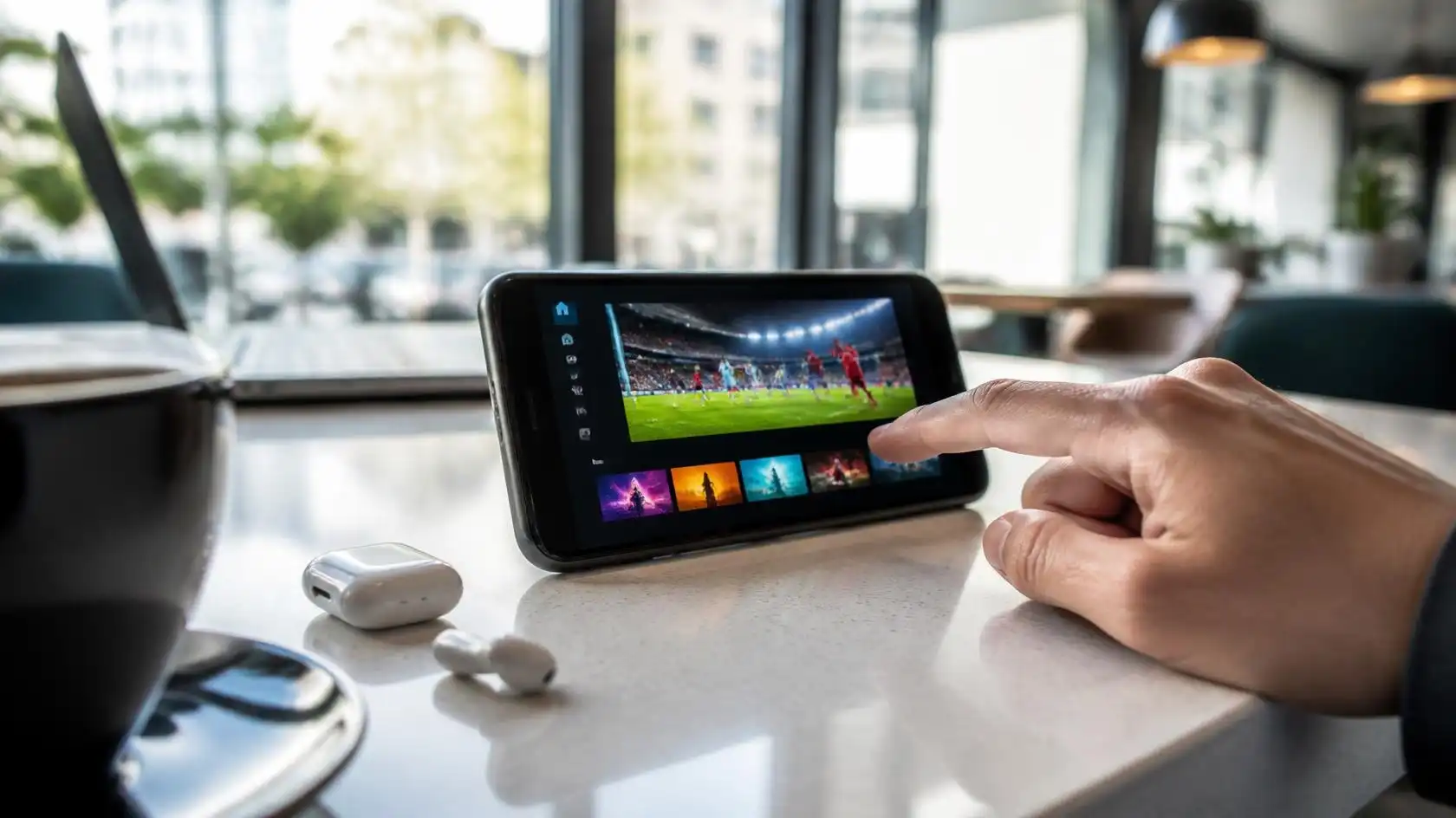
Features like favorites, electronic program guides, search, subtitles, multiple playlists, and playback controls are supported by some players.
Not all apps provide the same features, so check the capabilities before you choose one.
Your Internet connection is streaming the video
When you choose a channel the player requests the stream over your Internet connection.
Then the stream is decoded and shown on your Android device.
That’s why the quality of internet matters.” If the connection is weak, the stream may pause, buffer, reduce its quality or stop altogether.
“There’s fast connectivity but stability matters as well.” Playback may be impacted by Wi-Fi interference, router issues, network congestion and weak signal strength.
How to View IPTV on Android
You need an Android device, a compatible player, and the valid access information for your IPTV. The basic setup is easy.
Choose a trustworthy IPTV player
Open the default app store on your Android device and search for a trusted IPTV player.
Check app name, developer information, reviews, permissions and whether it is compatible with your Android version before installing an application.
Do not download random APK files from unknown websites just because they promise extra features or free access.
Once installed, open the player and look for an option like Add Playlist, Add User, Login, Add Provider or something similar.
The applications are worded differently.
Input your IPTV info
Choose the login type you used when you received the info from your IPTV provider.
For instance, if your provider has an M3U URL, select the playlist or M3U option, whenever possible.
If your provider gives you a login method they support, with a username, password and server address, select the appropriate option.
Enter every detail with care. In particular, pay attention to:
Spelling of username
Password Case Study
URL of the server
Port numbers.
Other Characters
Accidental insertion of spaces in front of or behind information
Then save the link.
Play playlist and test playback
Save your information and allow the app to load the available content.
It may take a little while to load, depending on the size of the playlist and the speed of your internet connection.
Open a channel and let it play for a few seconds. Just because you have one stream doesn’t mean the whole setup is working; test more than one channel.
If the playlist loads but some channels don’t play, then it’s possible that the problem is not your Android device. This may be a problem with the stream you are watching or it is the provider’s server.
How to Setup Step by Step IPTV on Android
Getting a decent IPTV on Android is more than simply entering a username and password. Some simple checks can save trouble later on.
Check your Android connection
Before you set up the IPTV player, open another app that needs internet access.
Watch a normal online video or visit a website. If other internet services are slow too, then it is not likely that the problem is IPTV.
If available, use a stable Wi-Fi connection. An Ethernet connection can also come in handy if your Android TV device supports it.
Try not to put your Wi-Fi router behind thick walls or in enclosed furniture, if possible.
Add the correct way of connection
Open your IPTV app and find the connection format provided by your provider.
Don’t choose a random way to log in.
For example, an M3U playlist should be entered using the playlist option where supported. If you have login credentials that are meant for a particular API-based method, you have to use the respective login option.
If you use the wrong method, there may be an error even if your username and password are correct.
Confirm the content loads correctly
Add the connection and check the main categories.
Try to open a couple of different channels. If you are provided with an Electronic Program Guide, verify that the guide information is correct.
If the player has a search function and favorites, check them.
If everything loads but playback isn’t stable, skip to connection and playback troubleshooting instead of reinstalling the application over and over again.
How to Select an Android IPTV Player
There is no single IPTV app that works for all Android users. You should choose depending on compatibility, usability, features and the login method that your service supports.
Check supported login format
The first question is whether the player supports the information you received.
If your provider is sending you an M3U playlist then the player must support M3U or playlist imports.
If your provider uses a different authentication method, make sure that the application supports it before installing and configuring the player.
This quick check can save time.
Check out helpful playback features
Consider features that make daily viewing easier.
Useful features can include:
Top Picks
Search for:
EPG support ;
Subtitles support
Playlist Several
Parental control
History of playback
External support for player
Choose Audio & Subtitles
You don’t necessarily need every feature Select the application that offers the tools you actually use.
Don’t use shady APK sources
Downloading an APK from an unknown website can cause unnecessary security risks.
Always use the official app store or the legitimate distribution channel for the application.
Do not turn off Android security protections to install an application unless you know why the setting is needed and you trust the source.
Also be wary of apps that ask for permissions that are not relevant to its function.
Enhance IPTV Streaming on Android
Sometimes even with the best set-up, playback may be unstable. You can make a number of practical changes to improve your viewing experience.
Boosting your Wi-Fi connection
If your Android device is at a distance from the router, the signal may be weak.
If possible, move the device closer to the router. You can also reduce interference by not using crowded wireless environments and by ensuring that your router is in an open space.
If your router supports multiple Wi-Fi bands, choose the one that provides the best range/performance for your particular setup.
If your Android TV hardware has an Ethernet port, it may be worth trying a wired connection.
Lower network traffic
Other devices on the same connection can affect streaming.
Big downloads , cloud backups , game updates , video calls and high res streaming on other devices can all eat up lots of bandwidth .
If you are having trouble playing IPTV, stop heavy network activity and try again in a moment.
This allows you to determine whether your home network is part of the problem.
Keep Android and the player up to date
Updates can fix bugs, compatibility issues and security holes.
Ensure there are no pending system updates on your Android device. Also check the legitimate distribution channel for updates for the IPTV player.
If the problem occurs immediately after an application update, refer to the application’s support information to see if there are any known problems before making any major changes to your device.
Common IPTV Issues on Android
Most Android IPTV issues will probably be one of a few common types. If you know what kind of problem you have, troubleshooting is much faster.
The playlist will not play
If your playlist won’t load, first check the information you entered.
Check the URL is correct and that your username and password are valid.
If you copied the information from an email or message, type it in carefully. Sometimes problems can happen with hidden spaces or line breaks.
You should also check that the internet connection works normally outside the IPTV app.
If so and you have access to other internet services, contact your IPTV provider to ensure your account and connection details are active.
Channels are buffering
Buffering usually means that the player cannot receive or process data fast enough for a smooth playback.
Try a different channel first.
If it’s only one or two channels buffering then this could be something specific to those streams.
If all channels are buffering, check your internet connection, restart the router, move closer to the Wi-Fi source, and close other applications that are using the network.
Don’t change multiple settings at once. . Make one change. Test playback. If needed, continue.
App crashing or freezing
Temporary software glitch, insufficient storage or compatibility problem may cause the IPTV player to crash repeatedly.
Close the app completely and then reopen it.
If the problem persists, restart your Android device.
You can also check on storage space and install pending application or system updates.
If you only have a problem with one IPTV application and other applications are working fine then it is good to test with another reputed compatible player to determine if the problem is with the application.
Troubleshooting IPTV Playback Issues
If IPTV Android Streaming is not working properly, do not just throw the whole thing away, go through a systematic troubleshooting process.
Restart basic components
Begin with the easiest solution.
Close IPTV player and restart it. If that doesn’t work, reboot the Android device.
Then, restart your router if other internet services are also having problems.
Once the connection is restored, test the IPTV player again.
This process can fix temporary network or application issues without changing your configuration.
Try out different channels
Multiple channel testing is an important diagnostic step.
If only one channel is down but others are working, your player and android device can probably connect successfully.
The problem could be isolated to that stream.
If none of the channels work, check your login credentials, internet connection, player settings, or account status.
This distinction avoids unnecessary modification of an already possibly valid configuration.
Delete app data carefully
Android gives you the option to delete application cache and, depending on the device, application data.
Clearing cache may help with temporary application issues.
But deleting all application data will remove saved login information and settings. If you choose this option, make sure you have your IPTV information with you.
If you ever have to reset the application, make sure to note down your settings so you are able to set it up again.
Android TV vs Android Phone IPTV
While Android TV devices and Android phones run on the same general Android ecosystem, the viewing experience can be different.
How to Use IPTV on an Android Phone
A phone is good to have around, because it’s portable and generally has a built-in touchscreen.
You can download a compatible IPTV player and input your provider’s connection details.
But your experience can be impacted by screen size, battery consumption, mobile data usage and network conditions.
Be aware Video streaming can use a lot of data so keep an eye on your data allowance if you are using mobile data.
Using IPTV on Android Tablet
You get a larger screen from a tablet but still have the mobility of a mobile device.
The setup process is very similar to that of an Android phone.
A tablet can be handy for watching IPTV around the house, especially if you don’t have a TV.
To view for longer periods connect the tablet to a steady Wi-Fi network.
Android TV IPTV
Android TV is more TV focused.
The interface is optimized for remote control navigation and compatible IPTV players can list channels in a format optimized for the larger screen.
Before installing an app, make sure it supports Android TV and not just touchscreen Android devices.
Common Mistakes When Installing IPTV
A lot of the setup problems are simple mistakes, not complex technical issues.
Incorrect method of signing
Not all IPTV services have the same kind of login, so don’t expect it.
One service may provide you with an M3U playlist, another may give you different credentials.
Read the instructions that came with your account and select the matching option in your IPTV player.
If you’re unsure about the format you received, ask your provider for clarification rather than guessing.
Installing apps that are not required
You don’t need to install multiple IPTV players simultaneously.
Begin with one reputable player that supports your device and login format.
If you install several applications troubleshooting can be more difficult as you may not know which application is causing the problem.
Keep it simple, stupid.
Changing advanced settings for no reason
IPTV players usually have advanced playback settings.
These may include buffer size, decoder options, aspect ratios, network settings and external player settings.
Do not arbitrarily change these settings.
If it works with the default setup, leave it alone. Only change advanced settings if you know what they do, or if a specific troubleshooting tip tells you to.

Android IPTV Tips for Better Experience
There are some habits that will help you maintain your setup easier after you get it working.
Manage your favorite channel.
If your IPTV player has a favorites feature, use it to make a shorter list of channels you watch a lot.
This is particularly useful when a playlist contains many categories.
You can get to the channels you use most without scrolling through the whole list.
Protect your login credentials
Treat your IPTV credentials like you would any other account details.
Please don’t post your account name, password, playlist URL or private server information publicly.
Don’t post screenshots that reveal your account details.
If you receive credentials in an email or message, store them somewhere safe so that you can access them in case you need to reinstall the application.
LEGAL AND AUTHORIZED CONTENT
IPTV is a way to deliver content over the Internet. Whether specific channels or streams are legal or not depends on the source and the rights associated with the content.
Please make sure you understand the service and whether the content is allowed to be distributed in your area before using it.
Users of Viking IPTV should also follow the service’s own setup and account instructions when setting up a compatible Android player.
Top Frequently Asked Questions About Android IPTV
Can I use IPTV on any device with Android?
Most modern Android devices can run IPTV applications, but compatibility depends on the particular player and Android version.
The application interface may be different on Android phones, tablets and Android TV devices. Please check the compatibility of the application before installation.
Can I Watch IPTV on Android with an IPTV App?
Usually yes. An IPTV service usually provides you with access information or a playlist and you can use an IPTV player to load and arrange that information for viewing.
The actual app and login method is dependent on the service you’re using.
How do I fix my IPTV not working on Android?
Unstable Wi-Fi, network congestion, a weak signal, a problem with that particular stream, or something wrong with the IPTV service can all cause buffering.
Try other channels first. Then test your Internet connection and reduce other network activity to find the likely cause.
Is IPTV available on Android TV?
Yes, you can watch IPTV on compatible Android TV devices with an IPTV player that supports your provider’s login format on the device.
The setup is similar to other Android devices, but Android TV apps are designed to be navigated with a remote control.
Why my IPTV playlist does not load?
Verify that your Internet connection is working and that you have typed the playlist URL or your login details exactly as given.
If the information is correct but the playlist still fails, check with your provider that the account and the connection details supplied are active.
Yes, you can use one IPTV account on several Android devices.
This depends on your IPTV service terms and connection limits.
Some services may limit the number of simultaneous connections or dictate how an account may be used.
Before attempting to use the same login details on multiple devices simultaneously, please review your provider’s account terms.
Do I have to use Android IPTV on Wi-Fi or Ethernet?
Both can work. For many users, a stable Wi-Fi connection may be sufficient, but Ethernet can offer a more stable connection on supported Android TV hardware.
It all depends on your network, your device, the location of the router, and the type of connection you have available.
Conclusion:
Getting IPTV on Android is generally a simple process once you understand the three main elements: your Android device, a compatible IPTV player and the right access details from your IPTV provider.
Begin by verifying your internet connection and device compatibility. Try a few channels, install a good player, select the right login method and enter your information correctly.
If playback is not stable, troubleshoot systematically. Check your network, try different channels, power cycle the relevant devices and don’t change advanced settings unless you have a clear reason to do so.
If you have an Android phone, tablet or Android TV device, a simple and correctly configured setup can make IPTV much easier to manage and use.